



How to Use ChatGPT in Google Sheets: Setup Guide + 10 Real Use Cases (2026)
Spreadsheet formulas just became optional. On April 22, 2026, OpenAI quietly dropped one of the most useful launches in recent memory — a native ChatGPT add-on inside Google Sheets and Microsoft Excel, available globally to every user including free accounts. No copy-pasting into a chat window. No uploading files. ChatGPT lives in a sidebar, reads your data, builds formulas, cleans columns, and writes scenario analyses — directly in your spreadsheet.
Here is everything you need to know: how it works, how to install it, what it can actually do, what it cannot do yet, and how it compares to rivals like Copilot and Gemini. If you work in spreadsheets more than 30 minutes a week, this will save you hours
1. What Is ChatGPT for Google Sheets?
ChatGPT for Google Sheets is a native add-on that embeds ChatGPT inside a sidebar directly within your Google Sheets interface — no tab switching, no file uploading. It launched globally in beta on April 22, 2026, following the Excel beta on March 5, 2026, both powered by GPT-5.4.
Unlike older third-party tools that required you to paste data into ChatGPT and copy results back, this integration is spreadsheet-native. ChatGPT reads your actual cells, formulas, and tab structure, and edits the workbook directly. It asks for your permission before making any changes and lets you revert any edit — so it is non-destructive by design.
Think of it as a smart analyst in your spreadsheet who speaks plain English. You describe what you need — 'Build a budget tracker with categories, totals, and a monthly chart' — and ChatGPT builds it, formulas and all. If you are already familiar with building AI-driven automation tools, this extends the same pattern from OpenAI Agents for workflow automation into the spreadsheet context you already work in daily.
The tool supports large multi-tab workbooks, references across sheets, formula explanation, trend summarization, and direct edits — all from a plain-language prompt in the sidebar.
2. How to Install ChatGPT in Google Sheets (Step-by-Step)
Installing the ChatGPT add-on in Google Sheets takes under two minutes. Here is the exact process:
- Open any Google Sheets file in your browser.
- Click Extensions in the top menu, then Add-ons > Get add-ons.
- In the Google Workspace Marketplace, search for 'ChatGPT'.
- Click the official ChatGPT add-on published by OpenAI and click Install.
- Grant the required permissions when prompted.
- Once installed, go to Extensions > ChatGPT > Open to launch the sidebar.
- Sign in with your OpenAI account (the one with your Free, Plus, Pro, Business, or Enterprise plan).
After sign-in, the ChatGPT sidebar appears on the right side of your spreadsheet. You can now type prompts directly and ChatGPT will read and edit the live spreadsheet.
If you are in a Business or Enterprise workspace, an admin may need to enable the add-on first. Go to Workspace settings > Permissions & roles > ChatGPT for Excel and Google Sheets > Enable.
Important caveat from OpenAI: spreadsheet chats operate separately from your main ChatGPT chat history, and memory is not available in the beta. Each session starts fresh.
3. How to Install ChatGPT in Excel
The Excel installation is equally straightforward:
- Open Microsoft Excel (desktop app or browser version at excel.cloud.microsoft.com).
- In the Home tab, click Add-ins.
- Search for 'ChatGPT' in the Office Add-ins store.
- Click Add, then open ChatGPT from the ribbon above your workbook.
- Sign in with your OpenAI account and the sidebar activates.
ChatGPT for Excel launched first in beta on March 5, 2026, targeted initially at Business, Enterprise, Edu, and K-12 users. Since the global rollout, it is now available to free-tier users with limited usage.
Note: VBA macros, Power Query, Office Scripts, Pivot/Data Model features, named range managers, slicers, and timelines are not yet supported in the Excel integration. Large workbooks may hit context window limits and return partial results.
4. Ten Real-World Use Cases with Example Prompts
This is where ChatGPT in Sheets genuinely earns its place. Here are ten concrete workflows that save real time, with the prompts you can use directly.
4.1 Build a Spreadsheet from Scratch
You describe what you need, and ChatGPT constructs the full sheet with correct formulas, headers, and formatting.
Prompt: "Build a monthly budget tracker with rows for rent, groceries, subscriptions, and transport. Add a totals column and highlight cells that exceed $500."
4.2 Generate and Fix Formulas
Stop hunting for the right XLOOKUP syntax. Describe your goal and ChatGPT writes and inserts the formula.
Prompt: "Write a formula in column D that pulls the product name from Sheet2 based on the SKU in column A. Explain what it does."
4.3 Clean Messy Data
One of the highest-ROI use cases. Paste in inconsistent exports and ask ChatGPT to standardize everything.
Prompt: "Clean up this sheet — standardize the date format in column B to DD/MM/YYYY, fix capitalization in column C, and remove duplicate rows."
4.4 Analyze Trends Across Tabs
ChatGPT reads multiple tabs simultaneously and surfaces patterns you would normally spend 30 minutes finding manually.
Prompt: "Summarize trends across the January, February, and March tabs. Call out any months where revenue dropped more than 10% week over week."
4.5 Build Financial Models
This is the feature that has finance teams most excited. OpenAI benchmarked GPT-5.4 Thinking at 88% accuracy on an internal investment banking benchmark — up from 43.7% with GPT-5.
Prompt: "Create a discounted cash flow model with inputs tab, three scenario tabs (base, upside, downside), and an output tab summarizing NPV and IRR for each scenario." If you want to go further and automate model refreshes or wire live data into your spreadsheets, explore AI workflow automation with Griptape for a programmatic complement to the ChatGPT sidebar.
4.6 Spot and Debug Formula Errors
Point ChatGPT at a broken formula cell and it traces the logic chain, explains what went wrong, and proposes a fix.
Prompt: "Why is cell B145 returning a #REF error? Explain the formula chain and suggest a fix that preserves the original intent."
4.7 Summarize Reports for Non-Technical Stakeholders
Convert dense data into executive-ready summaries without leaving the spreadsheet.
Prompt: "Summarize the Q2 sales data from Sheet1 into three bullet points suitable for a board update. Focus on top performers and areas of concern."
4.8 Build Scenario Analysis
Model 'what if' assumptions and let ChatGPT build comparison tabs automatically.
Prompt: "Create a new tab comparing three pricing scenarios — $49, $79, $99 — with projected monthly revenue, break-even month, and margin at each price point."
4.9 Pull in Live Web Data
ChatGPT for Sheets can search the web and pull results directly into your workbook. This is new — no previous spreadsheet AI tool supported this natively.
Prompt: "Search the web for the current exchange rate for USD to INR and insert it into cell C2 with today's date in C1."
4.10 Automate Routine Reporting Updates
When your input data changes, tell ChatGPT to update the model and summarize what changed.
Prompt: "Update the assumptions on the Inputs tab only — new headcount is 42, new ARR is $3.2M. Don't change formatting. Summarize every cell that changed."
Don't just use ChatGPT. Learn to build custom LLM agents, RAG pipelines, and full-stack Agentic AI apps in our intensive 6-week program.
5. ChatGPT Sheets vs GPT for Work vs Copilot vs Gemini
The spreadsheet AI space is crowded. Here is an honest comparison of the four main options as of May 2026:
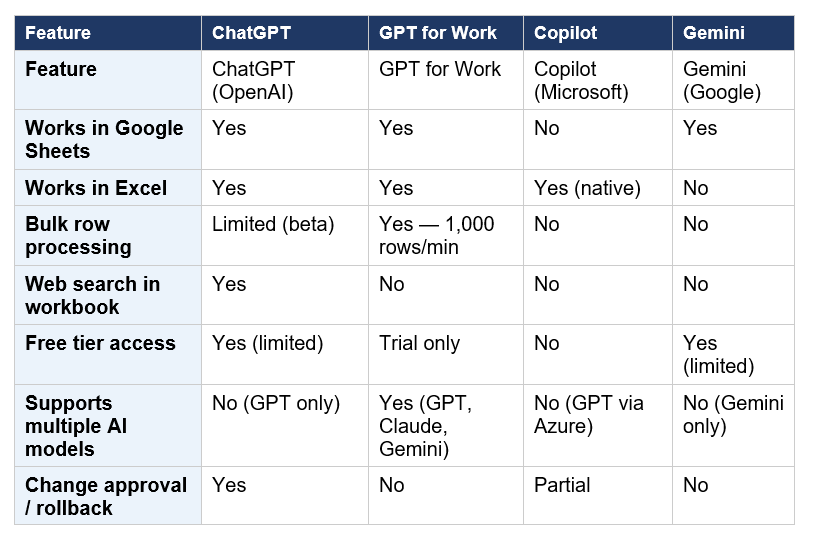
Honest take: ChatGPT wins for casual to mid-level use, especially if you are already on an OpenAI plan. GPT for Work is unbeatable for bulk row processing at scale. Copilot is the right call if your organization runs on Microsoft 365 and needs full VBA support. Gemini remains weak for actual spreadsheet automation — it is better at Docs and Gmail.
6. What ChatGPT Cannot Do in Spreadsheets Yet
Transparency matters here, and most coverage glosses over the limitations. As of May 2026, the beta does not support:
- VBA macros and Visual Basic for Applications automation
- Office Scripts and Power Query (Excel)
- Pivot Tables and Data Model features in Excel
- Named ranges manager, slicers, and timelines (Excel)
- Memory across sessions — each session starts fresh with no context from previous chats
- Large workbooks that exceed the context window — may return partial results
- Skill marketplace — community or organization-wide Skill sharing is not yet available
- Sync with your main ChatGPT chat history — spreadsheet sessions are isolated
The practical consequence: for complex, multi-session financial models with VBA automation, tools like Shortcut AI or Microsoft Copilot remain stronger choices today. ChatGPT's spreadsheet integration is genuinely excellent for 80% of everyday users — just not for the 20% with advanced enterprise automation needs yet.
For developers who want to go beyond the sidebar and build their own spreadsheet automation with full programmatic control, the multi-agent workflow patterns in LangGraph Supervisor are worth exploring as a complementary approach.
7. Pricing and Plan Limits
Pricing is straightforward but the agentic usage limits deserve attention — especially for teams planning to use the add-on heavily.
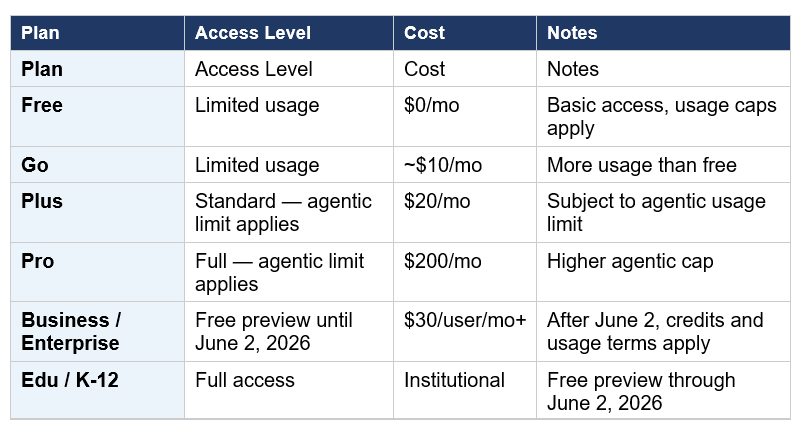
The agentic usage limit is shared across all agentic features in ChatGPT — Operator, Projects, and now Sheets/Excel. Heavier spreadsheet tasks (large files, complex multi-step edits) consume more of your limit. Business and Enterprise admins can monitor usage in the admin portal and purchase additional credits.
8. Pro Tips for Getting the Best Results
After testing extensively, here are the prompting patterns that consistently produce the best outputs:
- Be specific about what not to change. The most common mistake is vague prompts that let ChatGPT overwrite things you wanted to keep. Always add: 'Preserve all existing formatting in column A.'
- Ask for a plan before big edits. Type 'Before making changes, list every cell and tab you will modify.' Review the plan, then confirm. This catches misunderstandings before any data is touched.
- Use @sheet_name to focus context. You can mention specific sheets to limit what ChatGPT reads, which speeds up responses on large workbooks.
- Request explicit summaries of what changed. End every edit prompt with 'After completing, list every cell you modified and what the value changed from and to.'
- Chain prompts for complex models. Build iteratively — start with the structure, then add formulas, then add scenarios. Trying to do everything in one prompt on a complex model often produces partial results.
- Always verify financial outputs. OpenAI explicitly states ChatGPT is not a financial or accounting advisor. Spot-check calculated totals against manual calculations before sharing with stakeholders.
If you want to explore the broader landscape of AI tools transforming developer workflows beyond spreadsheets, the top 11 AI-powered developer tools roundup covers tools like Cursor, v0, and Outerbase that complement what ChatGPT for Sheets does.
The only comprehensive program designed to take you from basic prompting to building interactive Artifacts, custom integrations, and deploying production-ready code with Claude Code.
Frequently Asked Questions
How do I add ChatGPT to Google Sheets?
Install the ChatGPT add-on from the Google Workspace Marketplace. Open any Google Sheet, go to Extensions > Add-ons > Get add-ons, search for 'ChatGPT', and install the official OpenAI add-on. Sign in with your OpenAI account and the ChatGPT sidebar will activate on the right side of your spreadsheet.
Is ChatGPT for Google Sheets free?
Yes, with limitations. Free and Go plan users get access with usage caps. Plus and Pro users get more access subject to their plan's agentic usage limit. Business and Enterprise users have a free preview through June 2, 2026, after which credits and usage terms apply. Heavier tasks like large file edits consume more usage.
What can ChatGPT do inside Google Sheets?
ChatGPT can build full spreadsheets from plain-language descriptions, generate and fix formulas, clean and standardize messy data, analyze trends across multiple tabs, build financial models and scenario analysis, pull live web data into cells, summarize data in plain English, and update models when inputs change — all directly in your spreadsheet without copying and pasting.
ChatGPT vs Gemini — which is better for Google Sheets?
ChatGPT is currently stronger for spreadsheet automation. It offers change approval before edits, rollback options, web search from within the workbook, and financial data integrations with partners like FactSet and Moody's. Gemini in Sheets is useful for simple formatting and formula help but does not match ChatGPT's depth for multi-tab analysis or complex model building as of May 2026.
What is the agentic usage limit for ChatGPT in spreadsheets?
The agentic usage limit is a shared cap across all of ChatGPT's agentic features — including the spreadsheet add-on, Operator, and similar tools. Larger tasks like editing complex multi-tab workbooks consume more of your limit. Plus users are subject to standard agentic limits; Pro users have a higher cap; Business and Enterprise users can purchase additional credits from the admin portal.
Can ChatGPT fix broken formulas in Google Sheets?
Yes. You can point ChatGPT at a specific cell — for example, 'Why is cell B145 returning a #REF error?' — and it traces the formula chain, explains the root cause in plain language, and proposes a corrected formula. It can also scan an entire sheet and flag cells with errors or inconsistencies proactively.
Does ChatGPT in Sheets remember my previous sessions?
No. During the beta, memory is not available in the ChatGPT for Google Sheets experience. Each new session starts without context from previous conversations. Spreadsheet chats also do not sync with your main ChatGPT chat history — they operate as an isolated experience.
What spreadsheet features are not yet supported?
As of May 2026, ChatGPT for Sheets and Excel does not support VBA macros, Office Scripts, Power Query, Pivot Tables and Data Model features, data validation managers, named ranges manager, slicers, timelines, or a community Skill marketplace. Very large workbooks may also hit context window limits, producing partial results.
Recommended Blogs
- OpenAI Agents: Automate AI Workflows
- Griptape: AI Workflow Automation
- LangGraph Supervisor: Building Multi-Agent Workflows
- Top 11 AI-Powered Developer Tools Transforming Workflows in 2025
- Mastering LangGraph's Multi-Agent Swarm
- Camel AI: Mastering Task Automation and Role-Playing
References
- OpenAI — Introducing ChatGPT for Excel and New Financial Data Integrations
- OpenAI Help Center — ChatGPT for Excel and Google Sheets in Beta
- OpenAI — ChatGPT for Excel and Google Sheets Product Page
- Axios — OpenAI Releases New ChatGPT Model for Working in Excel and Google Sheets
- VentureBeat — OpenAI Launches GPT-5.4 with Native Computer Use Mode, Financial Plugins for Excel and Google Sheets
- TechCrunch — Google Updates Workspace to Make AI Your New Office Intern (Google Cloud Next 2026)
- EdTech Innovation Hub — ChatGPT Comes to Google Sheets and Excel in Beta
- GPT for Work — Best AI Tools for Excel and Google Sheets (2026)
Google Workspace Marketplace — ChatGPT for Google Sheets Official Listing

