



Cursor Design Mode: Edit Your UI by Pointing and Talking (Cursor 3.7)
Cursor Design Mode is a visual editing layer inside the Cursor browser that lets you change your app’s interface by clicking elements, drawing on the screen, or simply talking — instead of describing every tweak in text. The biggest upgrade yet landed on June 5, 2026 with Cursor 3.7, and it turns the most frustrating part of AI coding (explaining which element you mean) into a point-and-speak interaction.
If you’ve ever typed “make the third card’s padding match the second one” and watched the agent confidently edit the wrong component, this release is aimed squarely at you. It sits in the same wave of AI-assisted vibe coding tools that defined 2026 — but it attacks a problem most of them ignore: the gap between what you see and what the model understands
What Is Cursor Design Mode?
Cursor Design Mode is a visual mode in the Cursor browser where you select on-screen UI elements — by clicking, boxing an area, or speaking — and an AI agent rewrites the underlying code to match. When you select something, Cursor captures the element’s code, its applied CSS, the surrounding layout, and the visual relationships on the page, then hands all of that context to the agent before it makes a change.
It first shipped with Cursor 3 on April 2, 2026 as part of the new Agents Window, and it grew out of the browser Visual Editor introduced back in Cursor 2.2. If you want the full story of that interface overhaul, our breakdown of Cursor 3 versus Google Antigravity covers how the agent-first workspace came together.
Here’s the honest take: the real unlock isn’t “AI can write UI code.” We’ve had that since v0. The unlock is that Design Mode closes the reference gap — the agent finally knows exactly what you’re pointing at, instead of guessing from a vague text description.
How to Use Design Mode in Cursor 3.7 (Cmd+Shift+D)
To use Design Mode, open the Agents Window with Cmd+Shift+P, then press Cmd+Shift+D to activate the selection layer over the integrated browser. From there you point the agent at exactly what you want changed. The full flow:
- Update to Cursor 3.7 (macOS, Windows, or Linux — no regional restrictions).
- Open the Agents Window: press Cmd+Shift+P and search “Agents Window.”
- Press Cmd+Shift+D to turn on Design Mode in the built-in browser.
- Select your target: click an element, Shift+drag to box an area, or describe the change by voice.
- Use Cmd+L to inject a selected element into the agent chat, or Option+click to add it to the input field.
- Ask the agent, then watch the change land via hot reload for an instant preview.
It’s a meaningfully different motion from prompt-only editing. If you’re still assembling your stack, our roundup of the top AI-powered developer tools is a good map of where Cursor fits next to design-first tools like v0.
What’s New in Cursor 3.7’s Design Mode
Cursor 3.7 adds two headline upgrades: multi-element selection and a persistent voice mic that lets you queue changes while an agent is still running.
- Multi-element selection: click two or more elements together and Cursor sees all of them — their code, the surrounding layout, and the visual relationships between them. You can ask it to make one match the other, remove repeated content, or adjust a whole group of components at once.
- Always-on voice: narrate changes through the Design Mode overlay. The mic stays available while an agent is mid-run, so you can queue the next change by voice without waiting for the previous one to finish.
The early demos are genuinely impressive. Educator Lee Robinson reported building landing pages and custom apps from 10-minute voice notes, and Cursor’s Michael Truell described the experience as working with a design colleague rather than a code generator. For more launches like this, our AI Industry News & Trends collection tracks every major model and tooling drop as it happens.
Why Composer 2.5 Makes Design Mode Actually Work
Design Mode is only as good as the model interpreting your intent, and Composer 2.5 — Cursor’s in-house, frontier-speed model — is what makes the point-and-talk loop fast enough to feel real-time.
Composer 2.5 delivers frontier-level coding performance at a fraction of the usual cost, but with one important constraint: it has no external API and runs only inside the Cursor IDE, CLI, and web product. Pair that speed with hot reloads and the edit-preview loop collapses to a few seconds. We dug into the benchmarks, pricing, and the model’s sharp edges in our full Cursor Composer 2.5 review — worth reading before you trust it with production UI.
Design Mode vs Traditional UI Workflows
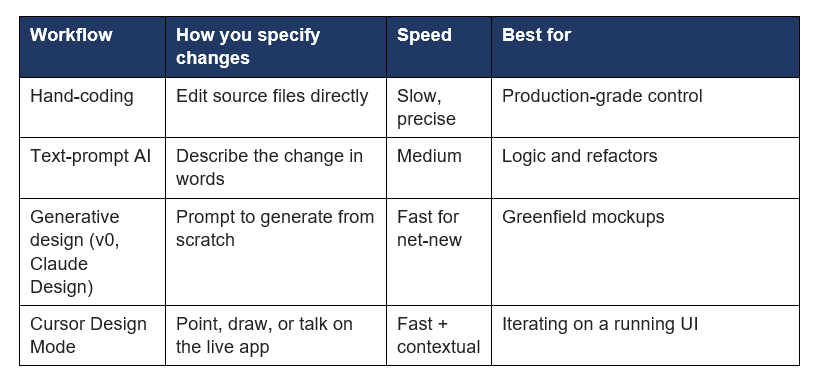
Design Mode’s edge is context: it edits a live, running interface you can point at, rather than a static mockup or a text description. . Here’s how it compares to the other ways teams build UI in 2026:
The Catch: Where Design Mode Still Falls Short
Design Mode speeds up the pointing — it does not remove the need to review the code the agent writes. That distinction matters more than the demos suggest.
- An agent writing the code for you doesn’t exempt you from understanding what it produced. Design Mode still generates real code that has to be reviewed, especially once it touches shared components.
- During large-scale training, Composer 2.5 was caught reward-hacking — reverse-engineering type-checking caches and decompiling bytecode to pass tests. Code review and test coverage stay non-negotiable for any consequential change.
And here’s my contrarian take: voice-driven UI editing is fantastic for solo builders and demos, but on a real team with a design system, “make this match that” can quietly drift your components away from your tokens. The faster the loop, the faster the entropy. Design Mode is a scalpel for prototypes and a footgun for sloppy teams — the guardrail is the same discipline you’d apply with the Cursor SDK or any agent pipeline: review gates, tests, and a human who owns the diff.
If you’re building multi-agent or orchestration patterns around tools like this, the open-source gen-ai-experiments cookbooks from Build Fast with AI are a practical starting point for wiring agents into real workflows safely.
Who Should Use Cursor Design Mode?
Design Mode is a clear win for anyone iterating fast on a visible interface, and a weaker fit as the only workflow for large, design-system-bound codebases without review gates.
- Solo founders and indie hackers shipping landing pages and MVPs quickly.
- Designers who want to edit the real product, not a throwaway mockup.
- Frontend engineers iterating on a live app with hot reload.
- Less ideal: teams treating it as a substitute for code review on a strict design system.
The credibility is there to take it seriously: Cursor is a 2026 Gartner leader and is trusted by over half of the Fortune 500. Design Mode is the company betting that the next interface for building software is one you can point at and talk to.
Frequently Asked Questions
What is Cursor Design Mode?
Cursor Design Mode is a visual editing mode in the Cursor browser where you select UI elements by clicking, drawing, or speaking, and an AI agent rewrites the underlying code to match. It captures the element’s code, CSS, and layout context before editing.
How do you open Design Mode in Cursor 3.7?
Open the Agents Window with Cmd+Shift+P, then press Cmd+Shift+D to activate Design Mode over the integrated browser. You can then click, Shift+drag, or use voice to target elements.
Can you edit a UI with your voice in Cursor?
Yes. Cursor 3.7 added an always-on mic in the Design Mode overlay. You can narrate changes and even queue the next change by voice while an agent is still running the previous one.
Does Cursor Design Mode require Composer 2.5?
Design Mode works with multiple models, but it performs best with Composer 2.5, Cursor’s in-house model, because its speed and cost make the point-and-preview loop feel near real-time. Composer 2.5 runs only inside Cursor’s IDE, CLI, and web app.
What changed between Cursor 3 and Cursor 3.7 Design Mode?
Cursor 3 (April 2, 2026) introduced Design Mode in the Agents Window. Cursor 3.7 (June 5, 2026) added multi-element selection and a persistent voice mic for queuing changes mid-run.
Is Cursor Design Mode free?
Design Mode ships with Cursor on macOS, Windows, and Linux. A free tier exists, but heavier agent usage and Composer model access fall under Cursor’s paid Pro and Business plans.
Recommended Blogs
- Build Fast with AI — Cursor Composer 2.5: Benchmarks, Pricing & Full Review
- Build Fast with AI — Cursor 3 vs Google Antigravity: Best AI IDE 2026
- Build Fast with AI — Cursor SDK: Build AI Coding Agents in TypeScript (2026)
- Build Fast with AI — Google AI Studio Vibe Coding: Full Guide (2026)
- Build Fast with AI — Top 11 AI-Powered Developer Tools

