



Grok for Excel Is Live: How to Install It and What It Does
Microsoft charges roughly $30 per user per month for Copilot in Microsoft 365. On July 20, 2026, xAI put Grok 4.5 inside Excel as a free add-in you can install in about two minutes. That is not a small competitive move, it is xAI walking into Microsoft's most profitable software category and handing out the tool at the door.
Grok for Excel is a Microsoft 365 add-in that docks a chat panel beside your workbook. You ask in plain English, and it writes formulas, builds pivot tables, cleans data, generates charts, and pulls live information from the web. It launched alongside Word and PowerPoint versions, which most coverage buried. Below is how to install it, seven prompts that actually work, the honest limitations, and the security checklist your IT team will want before anyone touches company data.
What Is Grok for Excel?
Grok for Excel is a free Microsoft 365 add-in from xAI that embeds Grok 4.5 directly into Excel as a side panel, letting you run spreadsheet tasks with natural language instead of manual formulas. It launched July 20, 2026, and it can read your workbook, write to cells, and search the web inside a single conversation.
The key architectural detail: it is a docked panel beside your workbook, not a separate tab or a standalone app. You keep your spreadsheet in view while Grok reads the cells you select, proposes changes, and applies them. It also cites which cells it used in its analysis, which is a genuinely useful trust feature that Copilot has been inconsistent about.
The story most coverage missed is that Excel was not the only launch. xAI shipped Grok add-ins for Word and PowerPoint at the same time, which turns this from a spreadsheet feature into a full Office productivity play aimed squarely at Copilot.
Table 1: The three Grok Office add-ins
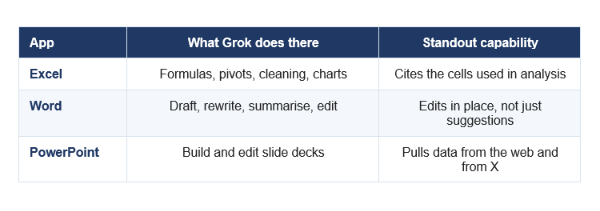
All three install from the Microsoft Marketplace and run as docked side panels.
My take: the PowerPoint version pulling live data from X is the capability no competitor can copy, because nobody else owns that data. That is xAI's real moat here, not the Excel formulas.
How to Install Grok for Excel in 5 Steps
Installing Grok for Excel takes under two minutes through the Microsoft add-in store, with no separate account setup beyond a standard xAI or Microsoft sign-in. Here is the exact sequence.
Step 1: Open the add-in store from inside Excel
Open any Excel workbook, go to the Insert tab on the ribbon, and click Get Add-ins (labelled Add-ins in some builds). That opens the Microsoft Marketplace panel without leaving your spreadsheet.
Step 2: Search for Grok by xAI
Type Grok by xAI into the search box. Check the publisher name reads xAI before installing, since marketplace search results routinely surface lookalike add-ins from unrelated developers. xAI has also shared a direct install link from its official @grok account on X, which avoids the search step entirely.
Step 3: Click Add and accept the permissions
Click Add. Excel will show a permissions dialog stating the add-in can read the current document and send data over the internet. Read that line carefully, because it is doing exactly what it says: your selected spreadsheet content leaves your machine and goes to xAI's servers for processing. Accept only if that is acceptable for the data in front of you.
Step 4: Sign in to your xAI or Microsoft account
The panel opens docked to the right of your workbook and prompts for sign-in. A standard xAI or Microsoft account works, with no separate registration required.
Step 5: Select your data and start prompting
Highlight the cell range you want Grok to work with, then type your request in the panel. Selecting a range first matters more than people expect: it scopes what Grok reads, which improves accuracy and limits how much of your workbook gets transmitted.
FOR ORGANISATIONS: DO NOT LET USERS SELF-INSTALL
Microsoft 365 admins can deploy the add-in org-wide from the admin centre, and can also block casual installation entirely. If you manage a tenant, decide the policy before your team discovers this add-in on their own. Once an employee pastes a customer list into an unapproved third-party AI panel, the data has already left.
Requirements and Availability
You need Microsoft Excel with add-in support, a Microsoft or xAI account, and access to the Microsoft Marketplace. Regional availability is the main catch: the add-in was not available to EU users at launch, with xAI indicating availability by the end of July 2026.
Table 2: Requirements at a glance
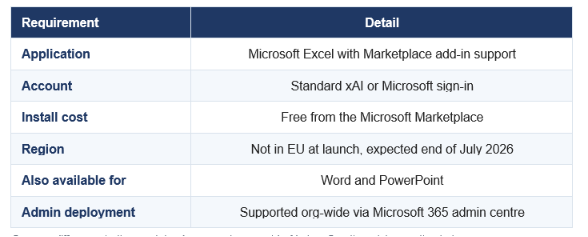
Sources differ on whether sustained use requires a paid xAI plan. See the pricing section below.
What Grok for Excel Can Actually Do
Grok for Excel handles six core job types: writing formulas, building pivot tables, cleaning and transforming data, generating charts, analysing patterns, and pulling live data from the web. It has both read and write access, so it does not just suggest, it can create real formulas, edit cell contents, sort ranges, and place charts into your sheet.
Table 3: Core capabilities
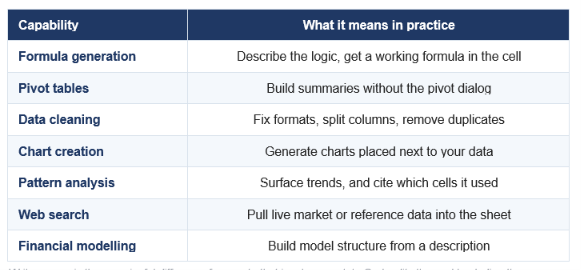
Write access is the meaningful difference from a chatbot in a browser tab: Grok edits the workbook directly.
The web search integration is what separates this from asking a chatbot and pasting the answer back. You can ask for current figures and have them land in cells alongside your existing data, without the copy-paste round trip that breaks most AI spreadsheet workflows.
If you work with data regularly, our guide to AI prompts for data analysts covers 40 prompts across Python, SQL and spreadsheets that translate directly to this panel.
7 Prompts to Try First
The fastest way to judge any AI tool is to give it work you already know the answer to. These seven prompts cover the capabilities above, and each one is written to be specific enough that Grok cannot hedge.
1. Formula from plain English
TRY THIS PROMPT
Write a formula for column F that returns the year-over-year percentage change between column D (2025 revenue) and column E (2026 revenue), showing a dash when the 2025 value is zero. Put the formula in F2 and fill it down.
2. Clean a messy column
TRY THIS PROMPT
Column B has customer names in inconsistent formats: some ALL CAPS, some with extra spaces, some with trailing commas. Standardise all of them to Title Case with no leading or trailing whitespace, and flag any row where the name is blank.
3. Build a pivot summary
TRY THIS PROMPT
Create a pivot table summarising total revenue by region and by quarter from the selected range. Sort regions by total revenue descending, and add a grand total row.
4. Explain someone else's formula
TRY THIS PROMPT
Explain what the formula in cell H14 does, step by step, in plain English. Then tell me one edge case where it would produce a wrong or misleading result.
5. Find the story in the data
TRY THIS PROMPT
Analyse the selected range and tell me the three most notable patterns or anomalies. For each one, cite the specific cells that support your conclusion, and tell me how confident you are.
6. Live web data into the sheet
TRY THIS PROMPT
Search the web for the current published pricing of the AI models listed in column A, then fill in column B with input price per million tokens and column C with output price. Add the source URL in column D for each row.
7. Chart with a specific brief
TRY THIS PROMPT
Create a line chart of monthly revenue from the selected range, with months on the x axis, a clear title, and axis labels. Place it to the right of the data, not on top of it.
The prompt habit that matters most: always select your range before asking. It scopes what Grok reads, improves accuracy, and limits how much of your workbook is transmitted. Prompt five is the one I would run first, because asking for cited cells and a confidence level exposes very quickly whether the tool is reasoning or guessing.
For more structured prompting patterns that work across any AI tool, see our AI prompts and prompt engineering hub.
Grok for Excel vs Microsoft Copilot
The honest comparison: Copilot is deeply integrated and enterprise-governed, Grok is free and has live web plus X data. They are not equivalent products, and the right choice depends far more on your compliance posture than on feature counts.
Table 4: Grok for Excel vs Microsoft Copilot
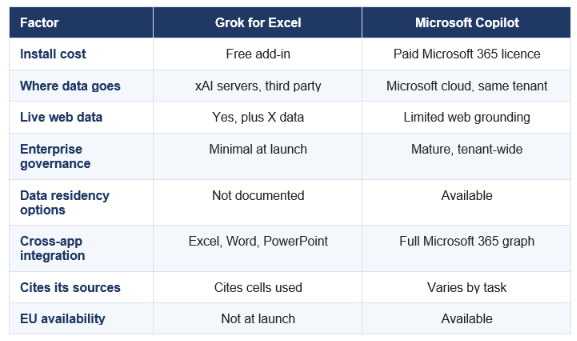
Copilot integrates with your organisation's email, calendar and files. Grok sees only what you select.
My verdict: for an individual analyst or a small team, Grok for Excel is an easy yes because the price is zero and the capability is real. For a regulated enterprise, Copilot's governance story is worth the licence fee on its own, and no free add-in changes that calculation.
The contrarian point: free is the strategy, not the product. xAI is buying distribution inside Microsoft's own software, and the eventual monetisation will come through paid Grok tiers and API usage. Enjoy the free window, but do not build a critical workflow assuming it stays free forever.
Pricing: What Is Free and What Is Not
The add-in itself installs free from the Microsoft Marketplace, and that much is consistent across every source. What is genuinely unclear at launch is whether sustained use requires a paid xAI subscription, because reporting conflicts.
Table 5: What the sources say about cost
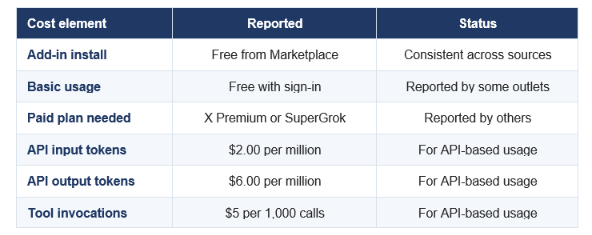
The API rates match Grok 4.5 standard pricing. Verify subscription requirements against your own account before planning a rollout.
VERIFY BEFORE YOU BUDGET
Sources disagree on whether the add-in requires a paid xAI subscription such as X Premium or SuperGrok for continued use, and usage caps apply either way. If you are planning a team rollout, confirm the current terms in your own xAI account rather than trusting any article, including this one. Launch-week terms change fast.
Limitations You Should Know
The single biggest risk is that generated formulas can look plausible without being correct. An AI-written formula that returns a number is not the same as an AI-written formula that returns the right number, and Excel will not warn you about the difference.
- Plausible but wrong formulas. Always spot-check AI output against a known result before it feeds a decision or a report.
- No EU availability at launch, with access expected by the end of July 2026.
- Usage caps apply, and subscription requirements for sustained use are inconsistently reported.
- Data leaves your machine. The add-in reads your document and sends content over the internet to a third party.
- Retention and training use are undocumented. There is no public clarity on how long prompts are kept or whether they train models.
- Limited admin controls. No granular per-user controls or data-residency options were documented at launch.
Practical rule I use: treat every AI-generated formula as a draft from a fast junior analyst. Useful, often right, never shipped without a check. Prompt four in the list above (asking it to explain a formula and name an edge case) is a good habit precisely because it forces the tool to expose its own assumptions.
Security Checklist for IT Teams
Before this add-in touches company data, run a short governance pass. The core issue is simple: unlike Copilot, Grok operates outside your Microsoft tenant with its own data handling, so your existing Microsoft 365 compliance posture does not automatically cover it.
Table 6: Pre-deployment checklist
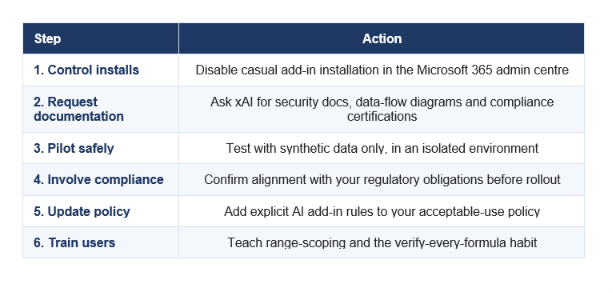
Step 1 is the one to do today. The others can follow, but uncontrolled installation is the risk that compounds fastest.
The realistic failure mode is not a dramatic breach. It is an analyst pasting a customer list or an unreleased financial model into a free AI panel because it saved them twenty minutes, with nobody aware it happened. Policy plus a default block solves that far more reliably than training alone.
Frequently Asked Questions
Q: What is Grok for Excel?
Grok for Excel is a free Microsoft 365 add-in from xAI, launched July 20, 2026, that embeds Grok 4.5 into Excel as a docked side panel. It writes formulas, builds pivot tables, cleans data, creates charts, and searches the web using natural language prompts, and it can read and write directly to your workbook.
Q: How do I install Grok for Excel?
Open Excel, go to the Insert tab, click Get Add-ins, search for Grok by xAI, and click Add. Accept the permissions prompt, sign in with your xAI or Microsoft account, then select a cell range and start prompting. The whole process takes under two minutes.
Q: Is Grok for Excel free?
The add-in installs free from the Microsoft Marketplace. Reporting conflicts on whether sustained use requires a paid xAI subscription such as X Premium or SuperGrok, and usage caps apply. API-based usage is billed separately at $2 per million input tokens and $6 per million output tokens.
Q: Is Grok for Excel better than Microsoft Copilot?
For individuals, Grok wins on price (free versus a paid Microsoft 365 licence) and on live web and X data access. For enterprises, Copilot wins on governance, since it runs inside your Microsoft tenant with mature admin controls and data-residency options, while Grok is a third-party service with limited documented controls.
Q: Does Grok for Excel work in Word and PowerPoint?
Yes. xAI launched Grok add-ins for Word and PowerPoint alongside Excel. In Word it drafts, rewrites and edits in place. In PowerPoint it builds and edits slide decks, and can pull information from the web and from X, which is a capability no competitor can match.
Q: Is Grok for Excel available in the EU?
Not at launch. Grok for Excel was unavailable to EU users when it went live on July 20, 2026, with xAI indicating availability by the end of July 2026. Check the Microsoft Marketplace from your region for current status.
Q: Is Grok for Excel safe for company data?
Treat it cautiously. The add-in reads your document and sends content over the internet to xAI, a third party outside your Microsoft tenant, and retention and model-training policies were not publicly documented at launch. IT teams should disable casual installation, request security documentation, and pilot with synthetic data before any rollout.
Q: Can Grok write Excel formulas?
Yes, and it writes them directly into cells rather than only suggesting text. It also builds pivot tables, sorts ranges and inserts charts. The caveat that matters: generated formulas can look plausible without being correct, so verify output against a known result before it feeds any decision.
Recommended Reads
- AI prompts for data analysts
- AI prompts and prompt engineering hub
- Best AI models July 2026 ranking
- GPT-5.6 Sol Terra Luna review
- Every major LLM ranked in 2026
Install it, run prompt five on a sheet you already understand, and judge it on whether the cited cells hold up. Follow Build Fast with AI for hands-on coverage of every major AI tool launch.

