



How to Run Google Gemma 4 Offline on Android, iPhone, and Laptop (2026)
Google AI Edge Gallery hit #8 on the iOS App Store productivity charts in under 48 hours. That number alone should tell you something big just happened with on-device AI.
On April 2, 2026, Google released Gemma 4, a family of four open-weight models under the Apache 2.0 license. The smallest two variants, E2B and E4B, were built from the ground up to run entirely offline on Android and iPhone hardware, no internet connection, no cloud API, no monthly subscription.
I have been tracking on-device AI for a while. Most offline AI apps are either underpowered demos or require a computer science degree to set up. Gemma 4 via Google AI Edge Gallery is neither. It takes about three minutes to set up and runs on most modern phones you already own.
This guide covers exactly how to get it running on Android, iPhone, and laptop, which model to pick for your hardware, and the honest answer to the question everyone is asking: is it actually fast enough to be useful?
What Is Gemma 4 Offline and Why It Matters
Gemma 4 offline means running Google's latest AI model entirely on your device, with zero data sent to any server, no Wi-Fi required, and no ongoing cost after the initial download.
Google released Gemma 4 on April 2, 2026, under the Apache 2.0 license. The two mobile-first variants, E2B and E4B, were co-developed with Qualcomm Technologies and MediaTek specifically for offline inference on phones. They run using under 1.5 GB of memory on some devices, thanks to 2-bit and 4-bit weight quantization.
The number that surprised me: Google AI Edge Gallery hit #8 on the iOS App Store productivity chart within days of launch. Logan Kilpatrick, Google's Developer Relations head, flagged this milestone publicly. That kind of traction does not happen for developer tools. Regular people are downloading this.
Here is why this matters beyond the hype. Most AI productivity tools today require a live internet connection, meaning your questions, documents, and private notes leave your device every single time. Gemma 4 offline changes that equation. Your data stays on your phone, period.
My take: the real winner here is not the benchmark nerd. It is the person who wants a capable writing assistant, voice transcription tool, or coding helper on a plane, in a hospital, or anywhere that a reliable internet connection is a luxury.
Which Gemma 4 Model Should You Use? Phone vs Laptop
The right Gemma 4 model depends entirely on your hardware. Picking the wrong variant is the number one reason people end up with a slow, frustrating experience.
Gemma 4 ships in four sizes. E2B and E4B are the mobile variants. The 26B MoE and 31B Dense are for laptops and workstations. Here is a clean breakdown:
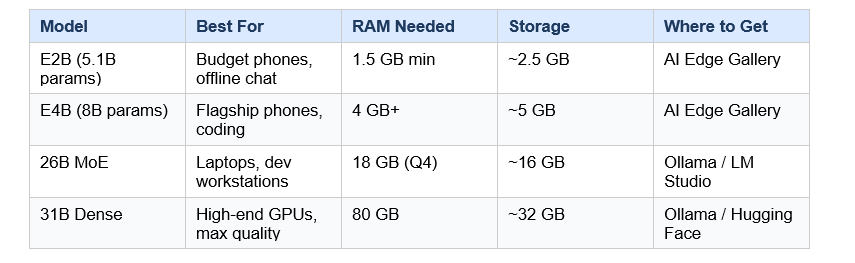
The naming trips people up. The 'E' in E2B stands for effective parameters, not total. The E2B has 5.1 billion total parameters but only activates 2.3 billion during inference, which is what controls speed and memory use. So when someone says 'E2B barely uses 1.5 GB,' that is accurate for the right device with 4-bit quantization.
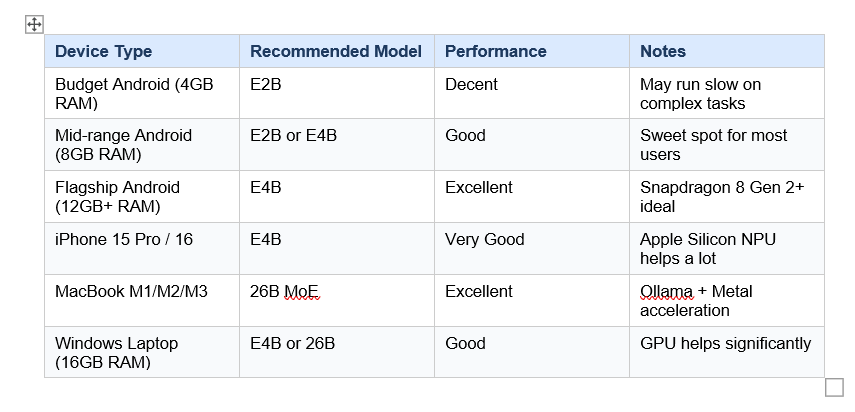
For most phone users reading this right now: start with E2B. If it feels slow or you want better output quality and your phone has 8 GB+ RAM, upgrade to E4B. Simple as that.
How to Run Gemma 4 Offline on Android Step-by-Step
Android setup takes about three minutes using the Google AI Edge Gallery app, available free on the Google Play Store. The app requires Android 10 or later.
Here is the exact process:
- Download the app — Search 'AI Edge Gallery' on Google Play Store, or go to play.google.com and search for the app by Google. Install it (it is free and open-source).
- Open and choose a mode — You will see options: AI Chat, Ask Image, Audio Scribe, Agent Skills, Prompt Lab, Mobile Actions. Start with AI Chat.
- Go to the Models tab — Tap Models at the bottom. You will see E2B and E4B available for download. E2B downloads around 2.5 GB. E4B is around 5 GB.
- Download your model — Tap E2B for speed or E4B for quality. Download over Wi-Fi the first time. After that, the model lives on your device permanently.
- Turn off Wi-Fi and test — Once downloaded, switch to airplane mode. Open AI Chat and send a message. If it responds, you are running fully offline.
Recommended chipsets for best performance: Qualcomm Snapdragon 8 Gen 2 or newer, Google Tensor G3 or newer, MediaTek Dimensity 9300 or newer. These have dedicated NPUs that run Gemma 4 dramatically faster than older Snapdragon chips.
If your phone has less than 6 GB of RAM, stick to E2B. Running E4B on a 4 GB RAM phone is technically possible but will be noticeably slow and may cause the app to restart.
How to Run Gemma 4 on iPhone and iOS Devices
Gemma 4 is available on iPhone via the Google AI Edge Gallery app on the Apple App Store, with one important caveat: Google recommends an iPhone 15 Pro or newer for reliable performance.
The setup on iOS mirrors Android almost exactly:
- Search 'AI Edge Gallery' in the Apple App Store, or go to the direct App Store link (App ID: 6749645337). Download the free app from Google.
- Open the app and tap the Models section. Select either E2B or E4B and begin downloading over Wi-Fi.
- Once downloaded, all inference runs locally using Apple's Neural Engine and GPU. No data leaves your iPhone.
- Try the Thinking Mode in AI Chat first. This shows you the model reasoning step-by-step, which is a genuinely impressive demo of what offline AI can do in 2026.
Why iPhone 15 Pro specifically? The A17 Pro chip includes a dedicated Neural Engine that handles AI inference far more efficiently than older iPhones. The iPhone 14 and older will run E2B, but expect noticeably slower response times and higher battery drain.
Here is my honest take on iPhone vs Android for this: Apple Silicon is actually better at local AI inference than most Android chips. The Neural Engine is more optimized, and iOS memory management gives the model more consistent headroom. If you have an iPhone 15 Pro or 16, try the E4B from day one.
How to Run Gemma 4 Locally on Your Laptop
Ollama is the fastest way to run Gemma 4 on a laptop, supporting Windows, macOS, and Linux in under five minutes. For Mac users with Apple Silicon, performance is particularly strong thanks to Metal GPU acceleration.
Option 1: Ollama (Recommended for Most Laptop Users)
- Download Ollama from ollama.com/download. Install it on Windows, macOS, or Linux.
- Open your terminal and run one of these commands:
ollama run gemma4:e2b # Phones-class, runs on 8 GB RAMollama run gemma4:e4b # Recommended for 16 GB RAM laptopsollama run gemma4:26b # Best quality, needs 24 GB VRAM or 32 GB RAMollama run gemma4:31b # Max power, needs 80 GB H100 or quantized setup- Ollama exposes a local API at http://localhost:11434 that is compatible with the OpenAI SDK. Any app built for ChatGPT can be pointed at your local Gemma 4 with no code changes.
Option 2: LM Studio (No Terminal Required)
LM Studio provides a graphical interface for running Gemma 4 locally. Download from lmstudio.ai, search for 'gemma4' in the model browser, download your chosen size, and start chatting. This is the best option for people who do not want to use a terminal at all.
Laptop Performance by Device
Gemma 4 Is Slow on My Phone: What to Do
Slow performance with Gemma 4 on a phone usually comes down to four things: wrong model size, low RAM, background apps, and thermal throttling. Here is how to fix each one.
Problem 1: You picked E4B on a phone with less than 8 GB RAM. Switch to E2B. In the AI Edge Gallery app, go to Models and download E2B instead. This alone resolves the majority of speed complaints.
Problem 2: Background apps are eating your RAM. Close everything else before running Gemma 4. On Android, clear recent apps. On iPhone, force-close other apps. Gemma 4 needs consistent memory access and will stutter if RAM is being contested.
Problem 3: Thermal throttling. If your phone gets warm during a long session, the CPU and NPU will clock down to manage heat. Take a break, let the phone cool, and try again. This is especially common on Android phones with plastic backs.
Problem 4: Older chipset. If you have a Snapdragon 765 or older (2020-era chips), Gemma 4 will be noticeably slow. There is no fix here except running on a laptop instead. E2B on Ollama on your laptop will outperform E4B on an older phone.
My honest advice: if your phone is more than three years old, use the laptop setup with Ollama instead. The phone experience on older hardware is frustrating enough to turn people off offline AI entirely, which is a shame because it actually works great on current-gen devices.
What Can You Actually Do with Gemma 4 Offline?
Gemma 4 offline handles text generation, image analysis, voice transcription, and multi-step agentic tasks, all without touching a server. Here are the use cases that genuinely work well right now.
- AI Chat with Thinking Mode: Multi-turn conversations where you can see the model reason step-by-step. Great for problem solving, writing drafts, explaining concepts. Thinking Mode is exclusive to Gemma 4 on the AI Edge Gallery app.
- Ask Image: Point your camera at anything and ask questions. Identify plants, get descriptions of documents, solve visual puzzles. The E2B and E4B models process images natively, which earlier Gemma versions could not do.
- Audio Scribe: Real-time voice transcription and translation into over 140 languages, processed entirely on-device. No audio ever leaves your phone. This is the feature I think has the most underrated potential for doctors, journalists, and field workers.
- Agent Skills: Multi-step autonomous tasks that use tools like Wikipedia search and interactive maps. One of the first fully offline agentic implementations on a consumer phone. You can even add custom skills from the community GitHub.
- Mobile Actions: Offline device controls and task automation powered by a fine-tuned FunctionGemma 270M model. Think voice-commanded shortcuts that require zero cloud access.
- Offline coding assistant on laptop: Running 26B MoE via Ollama turns your laptop into a local-first coding assistant. Feed it your codebase in the 256K context window and get completions, bug fixes, and explanations without sending code anywhere.
The one thing I will be honest about: complex multi-step reasoning on the phone variants still trails GPT-4o and Claude Sonnet. For quick tasks and focused workflows, Gemma 4 offline is genuinely useful. For deep research synthesis or complex code architecture, the larger cloud models still have an edge.
Gemma 4 Offline vs Cloud AI: An Honest Comparison
Gemma 4 offline wins on privacy, cost, and availability. Cloud AI wins on raw quality for complex tasks. The right choice depends on what you actually need.
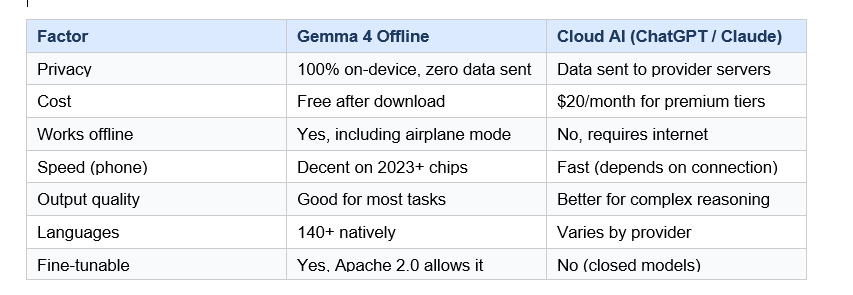
Here is the contrarian take nobody wants to hear: for 80% of everyday AI tasks, Gemma 4 offline is good enough. Writing emails, summarizing documents, answering factual questions, transcribing voice notes. The 20% where cloud models genuinely win is deep research, complex multi-step coding projects, and tasks requiring information from the last few weeks.
The real opportunity is using both. Gemma 4 offline for private, everyday tasks. Cloud AI for the heavy-lift work that needs frontier capability. That is the setup I have been using, and it cuts my cloud AI subscription costs significantly.
Frequently Asked Questions
Is Google Gemma 4 free to use offline?
Yes. Gemma 4 is released under the Apache 2.0 license, which allows free use for personal and commercial purposes. The Google AI Edge Gallery app is also free on both Android and iOS. The only cost is the initial storage for the model download, around 2.5 GB for E2B and 5 GB for E4B.
What Android version do I need to run Gemma 4?
The Google AI Edge Gallery app requires Android 10 or later. For best performance, Google recommends a device with a Qualcomm Snapdragon 8 Gen 2 or newer, Google Tensor G3 or newer, or MediaTek Dimensity 9300 or newer chipset. Any phone from 2023 or later from major brands will typically meet this bar.
Can I run Gemma 4 on an older iPhone?
Google officially recommends the iPhone 15 Pro or newer for reliable offline performance. Older iPhones (14 and below) can technically run E2B but will be slower and drain battery faster. The iPhone 15 Pro's A17 Pro chip has a dedicated Neural Engine that handles Gemma 4 inference significantly more efficiently than A15-era hardware.
Does Gemma 4 work in airplane mode?
Yes. Once the model is downloaded to your device via Wi-Fi, all inference runs 100% locally. You can use Gemma 4 with no internet connection, no cellular signal, and in full airplane mode. This is confirmed in Google's official documentation and multiple independent tests showing near-zero latency in airplane mode.
How do I fix Gemma 4 running slow on my phone?
The most common fix is switching from E4B to E2B if your phone has less than 8 GB of RAM. Beyond that, close all background apps before launching AI Edge Gallery, keep your phone cool during extended sessions to prevent thermal throttling, and make sure you have at least 3 GB of free storage beyond the model file. If your phone is older than 2022, consider using Ollama on a laptop instead for a better experience.
How much storage does Gemma 4 need on a phone?
The E2B model requires approximately 2.5 GB of storage after download. The E4B model requires approximately 5 GB. Both models stay permanently on your device after the initial download, so you do not need to re-download them. Ensure you have at least 3-4 GB free beyond the model size for the app and inference buffers.
Can I use Gemma 4 offline for coding on my laptop?
Yes. The 26B MoE variant via Ollama is particularly well-suited for offline coding assistance on a laptop with 24 GB VRAM or 32 GB RAM. It supports a 256K context window, allowing you to feed in large codebases. Ollama exposes a local API at localhost:11434 compatible with the OpenAI SDK, so tools like Cursor or Continue.dev can route to your local Gemma 4 instance.
What is the difference between Gemma 4 E2B and E4B?
E2B has 5.1 billion total parameters but activates only 2.3 billion during inference, making it faster and more memory-efficient. E4B has approximately 8 billion total parameters with 4.5 billion effective parameters, giving better output quality at the cost of higher RAM and storage requirements. Both support 128K context, multimodal input (text, images, audio), and 140+ languages. For phones with 6-8 GB RAM, start with E2B.
Recommended Reads
These are real posts from Build Fast with AI that go deeper on related topics:
Google Gemma 4: Best Open AI Model in 2026?
Google Releases Gemma 3: Here's What You Need To Know
What Is Mixture of Experts (MoE)? How It Works (2026)
References
- Google DeepMind — Gemma 4: Byte for byte, the most capable open models (Official Launch Blog)
- Google Developers Blog — Bring state-of-the-art agentic skills to the edge with Gemma 4
- Google Play Store — AI Edge Gallery App
- Apple App Store — Google AI Edge Gallery (iOS)
- GitHub — google-ai-edge/gallery: Open-source repository for AI Edge Gallery
- OfficeChai — Google AI Edge Gallery Breaks Into Top 10 on App Store as Users Try Out On-Device Gemma 4
- BusinessToday — Run Google's new Gemma 4 AI models locally on Android and iOS

