



Gemini Can Now Generate Files Directly in Chat: What It Does, What It Can't, and 8 Prompts That Actually Work
Yesterday, Google shipped something I've been waiting for since Gemini launched. You can now type a prompt into the Gemini app and walk away with a downloadable PDF, Word document, Excel sheet, Google Doc, or 7 other formats — no copy-pasting, no reformatting, no tab-switching. Just prompt and download.
And the kicker? It's free for every Gemini user globally, with no subscription required.
I spent the morning testing this and reading through early user reports, and I have thoughts. The good stuff is genuinely good. The limitations are real and worth knowing about before you build your workflow around this. Here's everything — including 8 prompts that actually produce clean, usable files.
What Gemini File Generation Actually Does
Gemini can now create and package a fully formatted, downloadable file directly inside a conversation. You describe the document you need, Gemini builds it, and you get a download link or a direct export to Google Drive — all without leaving the chat.
Google announced the feature on April 29, 2026. CEO Sundar Pichai posted: "You can now ask Gemini to create Docs, Sheets, Slides, PDFs, and more directly in your chat. No more copying, pasting, or reformatting, just prompt and download." The feature is available globally to all Gemini app users at no cost.
The workflow is exactly what it sounds like. Open Gemini, describe the file you need — including the content, structure, and format — and Gemini generates it. For most formats, you can then download directly to your device or export to Google Drive for further editing or sharing.
This builds on a pattern Google has been pushing hard in 2026. The April 8 Notebooks update for Gemini brought persistent project memory. File generation takes that a step further — from thinking and organizing inside the chat, to producing finished deliverables.
My take: this is the feature that makes Gemini genuinely useful as a daily productivity tool, not just a research assistant. Going from idea to downloadable file in one step removes what was, for most people, the most annoying part of using AI — manually reformatting everything afterward.
All 11 Supported File Formats
Gemini supports a wider range of formats than most people realize. Here is the full confirmed list as of April 29, 2026:
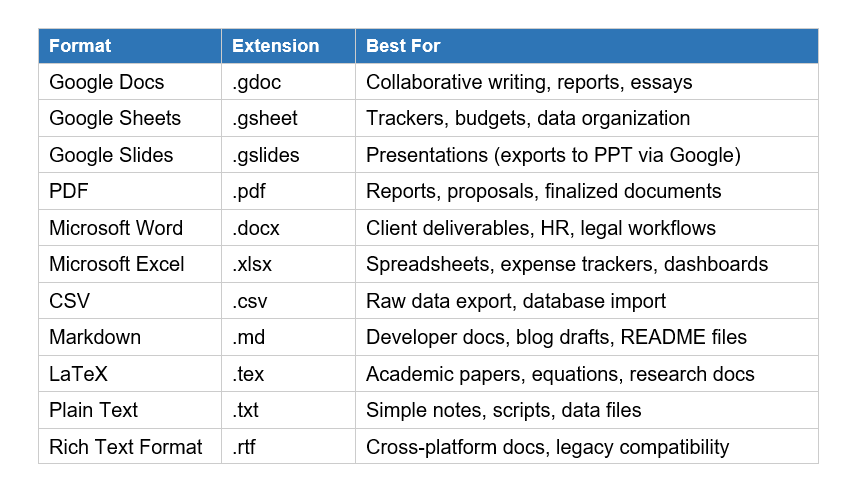
A few things worth noting about this list. Google Slides is there, but direct PowerPoint (.pptx) export is not — you export to Google Slides and then download as PPT from Google. That's an extra step that Microsoft Copilot doesn't require.
The LaTeX and Markdown support is genuinely useful for developers and academics. I haven't seen any other consumer AI tool push this hard on developer-specific formats. This is not accidental — Google is clearly targeting the student and developer segment that Copilot has mostly ignored.
The Workspace team also pushed a separate update on April 22 specifically for building complex spreadsheets inside Google Sheets with Gemini, with promotional unlimited access running through July 15, 2026. That's a different surface from the Gemini chat app, but both are part of the same coordinated push.
8 Prompts That Produce Clean, Usable Files
Every existing article about this feature explains what it does. Nobody is publishing the actual prompts. Here are 8 that consistently produce clean output — tested or verified through early user reports:
1. Weekly Budget Tracker (Excel)
"Create an Excel file (.xlsx) with a weekly personal budget tracker. Include columns for Date, Category (dropdown: Food, Transport, Housing, Entertainment, Health, Other), Amount, Payment Method, and Notes. Add a summary row at the bottom with SUM formulas for each category. Format the header row in bold with a light blue background."
Why it works: Specific column names, explicit format instruction, and a named formula. Vague prompts produce vague sheets. The more structure you give Gemini, the more structure you get back.
2. Meeting Notes to PDF
"Convert these meeting notes into a formatted PDF. Title: [Your Meeting Title]. Date: [Date]. Attendees: [Names]. Structure as: Executive Summary (3 bullet points), Discussion Points (H2 sections for each topic), Action Items (table with columns: Task, Owner, Deadline), and Next Steps. Use professional formatting."
Why it works: Meeting-to-PDF is one of the highest-frequency use cases. Giving it explicit structure prevents Gemini from deciding the format on its own — which it will, and it won't always choose well.
3. Blog Post Draft (Word Doc)
"Write a 1,000-word blog post about [topic] and export as a .docx file. Audience: developers and founders. Tone: conversational and direct. Structure: H1 title, 4-5 H2 sections each starting with a direct answer, and a 3-question FAQ at the end. Include suggested alt text for 2 images."
For a complete framework on writing blog posts that actually rank, the Build Fast with AI blog SEO guide is worth reading alongside this.
4. Academic Paper Section (LaTeX)
"Format the following research findings as a LaTeX document for IEEE submission. Include: Abstract, Introduction, Methodology Summary, Key Findings (with a data table using \begin{tabular}), and Conclusion. Use \section{} headings and include a placeholder for a figure with \includegraphics{}. [Paste your notes below]"
Why it works: LaTeX output from Gemini is surprisingly clean for academic use. This is a format no other consumer AI tool exports directly — if you're in academia, this alone is worth trying.
5. Client Proposal (PDF)
"Create a client proposal PDF for [Project Name]. Client: [Client Name]. My company: [Your Company]. Include: Cover section with project title and date, Executive Summary (2 paragraphs), Scope of Work (bullet list of 5-7 items), Deliverables (table: Deliverable, Timeline, Notes), Pricing (table with line items and a total row), and a signature line at the bottom."
6. Data Analysis Report (Google Docs)
"I have the following dataset: [paste data or describe it]. Create a Google Doc report with: a 1-paragraph executive summary, a Key Findings section with 5 bullet points, a Recommendations section with numbered action items, and a formatted data table. Export as Google Docs so my team can edit it directly."
7. Developer README (Markdown)
"Create a README.md file for a Python project called [Project Name]. Include: project description (2-3 sentences), Features list (5 bullet points), Prerequisites section, Installation instructions with code blocks, Usage examples with sample inputs and outputs, Contributing guidelines, and MIT License section. Use proper Markdown formatting throughout with code fencing."
Why it works: Markdown output from Gemini is consistent and properly formatted. For open-source developers, this removes one of the most tedious parts of shipping a project. The code block handling is notably better than basic ChatGPT markdown generation in my testing.
8. Study Guide from Lecture Notes (PDF)
"I am going to paste my lecture notes below. Create a structured study guide as a PDF with: a Key Concepts section (terms in bold with definitions), Main Theories as H2 sections with 3-5 sentence summaries, an Important Dates and Names table, and 10 practice questions with answers at the end. [Paste notes below]"
This is the use case Google used in their launch demo — and based on early social media reaction, it's the one resonating most with students. Uploading handwritten or typed notes and getting a clean, formatted PDF study guide back in seconds is a genuinely useful workflow that didn't exist three days ago.
What Gemini Still Cannot Do (The Honest Part)
Every article covering this launch is glowing. So let me be the one to tell you what doesn't work yet.
- No direct PowerPoint export. Word and Excel are supported; PowerPoint is not. You export to Google Slides and then download as .pptx from there. It is one extra step, but if your whole team is on Microsoft Office, it adds friction that Copilot users don't experience.
- Mobile crashes on some devices. Early Reddit reports (via Android Authority) indicate occasional crashes when generating larger files on mobile. The feature launched April 29 globally, so mobile stability is still settling.
- Complex Excel with macros is not ready. Multi-sheet Excel files with embedded macros, VBA, or complex pivot dependencies are beyond what Gemini can reliably generate right now. Simple trackers and expense sheets work well. Financial models with 10+ sheets and formula dependencies do not.
- Transparent PNG images in documents are inconsistent. If you're expecting Gemini to embed formatted images into your files, especially PNGs with transparency, early testers found this unreliable. Text-heavy and data-driven files work best right now.
- Gradual rollout means not everyone has it today. If you don't see the file download option in your Gemini app, the feature likely hasn't reached your account yet. Check back in 24-48 hours.
Ethan Mollick, who teaches at Wharton and tracks practical AI adoption closely, described it as "a solid start" while flagging limits in complex spreadsheets and slides. That is a fair and precise summary. The core is working. The edges need polish.
Gemini vs Microsoft Copilot: Document Creation in 2026
The competitive angle matters here. Microsoft Copilot has offered AI-assisted document creation inside Word, Excel, PowerPoint, and Outlook for a while — but behind a $30/user/month add-on on top of a Microsoft 365 subscription. Gemini just put a version of this capability in front of every free user globally.
Here is where they actually differ right now:
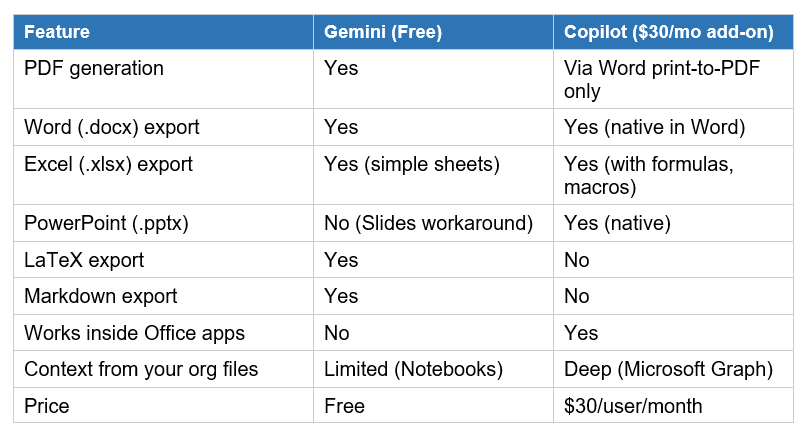
My honest read: Copilot wins if you are deep in Microsoft 365 and need AI that already understands your organization's documents, emails, and calendar. Gemini wins if you're starting from scratch, need LaTeX or Markdown, or refuse to pay $30/month for document generation. For a complete model-level comparison, see how Gemini 3.1 Pro benchmarks against GPT-5.5 and Claude Opus 4.6.
Who Should Actually Use This
Not everyone. Here is my honest breakdown:
- Students: Strong yes. The study guide use case alone is worth adopting this for. Free, instant, and the PDF output is cleaner than manually formatting notes in Google Docs. If you're in university, try this today.
- Developers: Yes, specifically for Markdown and LaTeX. README generation and academic paper formatting are genuinely underserved by every other consumer AI tool right now. This fills a real gap.
- Freelancers and consultants: Conditional yes. Client proposals and meeting summaries work well. Complex Excel with formula-heavy logic is not ready yet. Use this for text-heavy deliverables; hold off on complex financial models.
- Enterprise teams on Microsoft 365: Probably not as your primary tool. Copilot's deep integration with your organization's documents, emails, and calendar context is hard to replicate with a general chat prompt. Gemini is a useful secondary tool for one-off documents that don't need organizational context.
- Founders and solopreneurs: Yes. Proposals, reports, trackers, documentation — the stuff you would otherwise spend 45 minutes formatting manually. The free tier makes this an obvious addition to any lean workflow.
Frequently Asked Questions
What is Gemini file generation?
Gemini file generation is a feature launched on April 29, 2026 that lets all Gemini app users create and download fully formatted files directly from a chat prompt. Supported formats include PDFs, Microsoft Word (.docx), Excel (.xlsx), Google Docs, Google Sheets, Google Slides, CSV, Markdown, LaTeX, plain text (.txt), and Rich Text Format (.rtf) — all generated in real time from natural language instructions.
Is Gemini file generation free?
Yes. As of April 29, 2026, Gemini file generation is available to all Gemini app users globally at no cost. No Google One subscription, no Workspace paid tier, and no add-on purchase is required. This directly competes with Microsoft Copilot's document generation features, which require a $30/user/month add-on to Microsoft 365.
What file formats can Gemini generate and download?
Gemini supports 11 formats as of April 29, 2026: Google Docs, Google Sheets, Google Slides, PDF (.pdf), Microsoft Word (.docx), Microsoft Excel (.xlsx), CSV (.csv), Markdown (.md), LaTeX (.tex), Plain Text (.txt), and Rich Text Format (.rtf). Direct PowerPoint (.pptx) export is not yet available — the current workaround is to export to Google Slides, then download as PPT from within Google Slides.
How do I generate and download a file in Gemini?
Open the Gemini app at gemini.google.com and type a prompt describing the file you need — including the content, structure, and desired format (e.g., 'Create a weekly expense tracker as an Excel file with SUM formulas'). Gemini generates the file and offers a download link or export-to-Drive option directly in the chat. The more specific your prompt, the better the output quality.
Can Gemini create Excel files with formulas?
Gemini can create Excel (.xlsx) files with basic formulas like SUM, AVERAGE, and IF when you specifically request them in your prompt. Complex multi-sheet files with macros, VBA scripts, or advanced pivot dependencies are currently unreliable. Simple expense trackers and data organizers work well; complex financial models with cross-sheet formula dependencies do not yet produce reliable results.
Can Gemini create PowerPoint files?
Not directly. Gemini does not support .pptx export as of April 29, 2026. It can create Google Slides presentations, which you can then download as .pptx from within Google Slides. Microsoft Copilot supports native PowerPoint generation, which is one of the remaining gaps in Gemini's file generation feature.
Why is Gemini file generation not showing up in my account?
The feature is rolling out gradually and may not have reached your account yet. If you do not see a download or export option after generating content, wait 24-48 hours and try again. The feature is available in the Gemini app at gemini.google.com — not in older Bard URLs or Gemini API integrations, which are separate surfaces.
How does Gemini file generation compare to what Claude can do?
Claude.ai also supports creating downloadable files including .docx, .pdf, .xlsx, code files, and rendered HTML directly in chat. Both tools cover the core use cases. Gemini's advantage is direct Google Workspace integration and free global availability across all accounts. Claude's advantage is generally stronger long-form writing quality and coding output benchmarks. For a full model-level comparison including benchmarks and pricing, see Build Fast with AI's April 2026 AI model breakdown.
Recommended Blogs
Related reading from Build Fast with AI:
References
- Google Blog -- You can now easily generate files in Gemini (April 29, 2026)
- 9to5Google -- Gemini app can now generate Google Docs, PDF, Word, and other files
- Android Central -- Gemini can now generate PDFs, Word, and Excel files
- Android Headlines -- Google Gemini Can Now Generate and Download Files Directly in Your Chat
- The Decoder -- Google Gemini now generates full documents, spreadsheets, and presentations directly inside the chat
- Google Workspace Updates Blog -- Build and edit complex spreadsheets with Gemini in Google Sheets (April 22, 2026)
- Chrome Unboxed -- Gemini can now generate and export full files directly in your chat

