



I woke up on a Wednesday morning, opened my laptop, and built a fully personalized email automation - complete with a Google Sheets trigger, AI-written copy, and automatic row updates - before my second coffee. No Python. No APIs stitched together with prayer. Zero lines of code.
That same morning, a working meditation app was live at a shareable URL. A 20-slide deck had been researched, designed, and exported. A week-long LinkedIn and Twitter content calendar existed in an Excel file I hadn't touched.
This is not a hypothetical. This is what happened inside Satvik's live workshop on AI automation in April 2026. Five tools. Three automations built from scratch. The entire session took under three hours, and every attendee left with something working.
If you want a broader picture of where AI is going this year, read the AI in 2026 survival guide first - then come back here for the hands-on part.
What Is an AI Agent? (And Why It's Not the Same as ChatGPT)
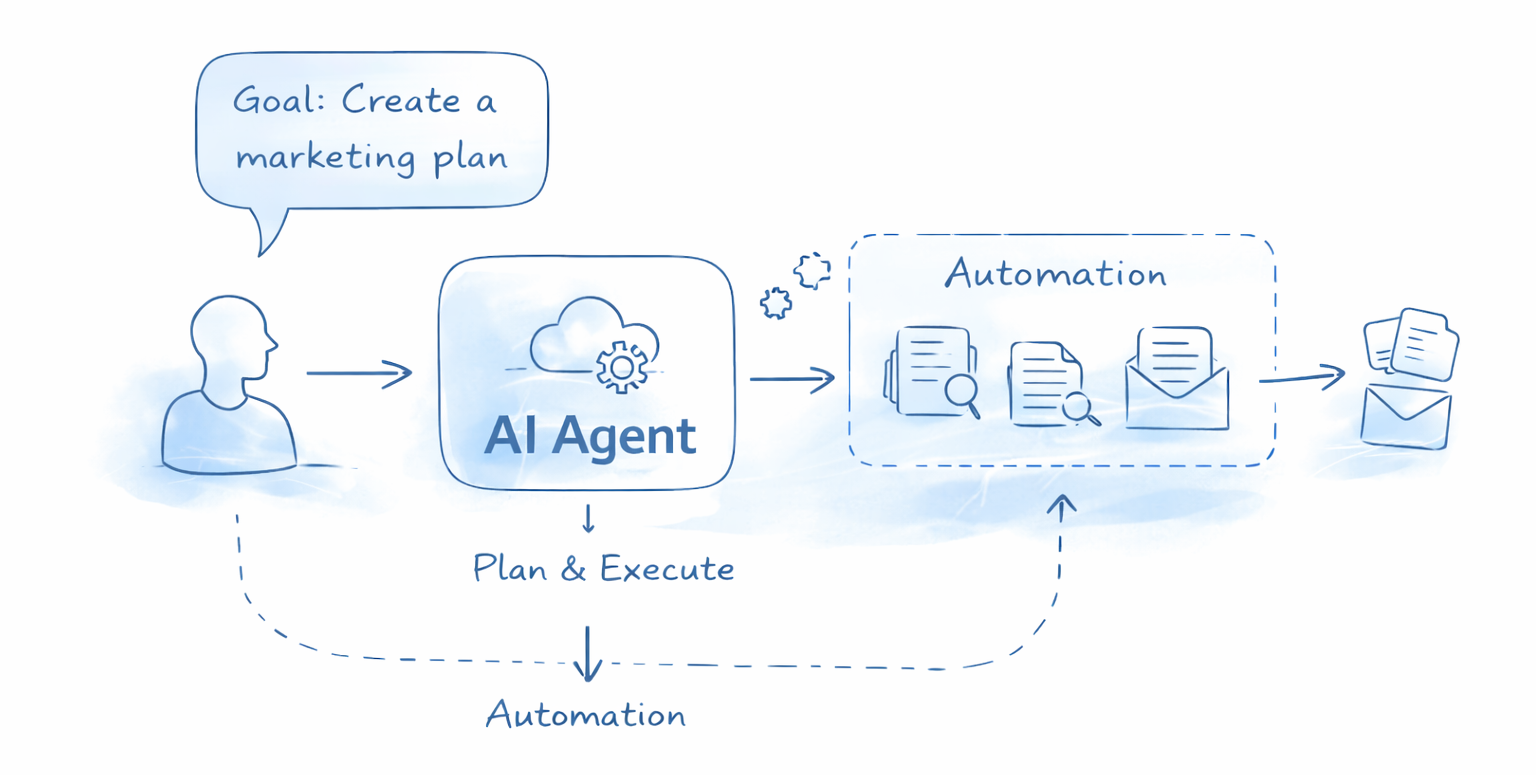
An AI agent is a language model combined with logic that lets it plan and act autonomously - not just answer once and wait. That's the entire distinction, and it matters more than most people realize.
When you type a question into ChatGPT, it responds and stops. An AI agent receives a goal - "create a one-week marketing campaign for my course launch" - and executes it across multiple steps, reading files, generating documents, and producing finished outputs without you babysitting it.
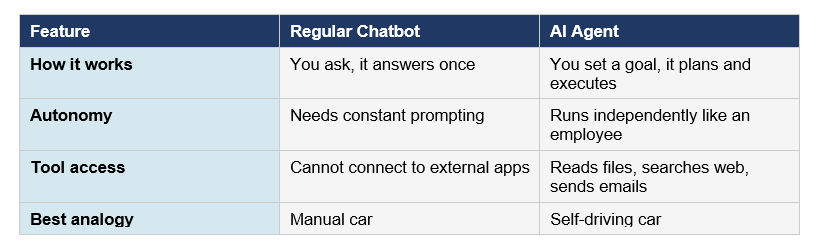
The analogy Satvik used in the workshop stuck with me: a regular chatbot is a manual car. You control every shift. An AI agent is self-driving. You give it a destination, it figures out the route.
If you want to go deeper on the underlying architecture, the best AI agent frameworks guide for 2026 covers LangGraph, CrewAI, AutoGen, and more - including which framework fits which use case.
The 5 Tools Covered in the Workshop
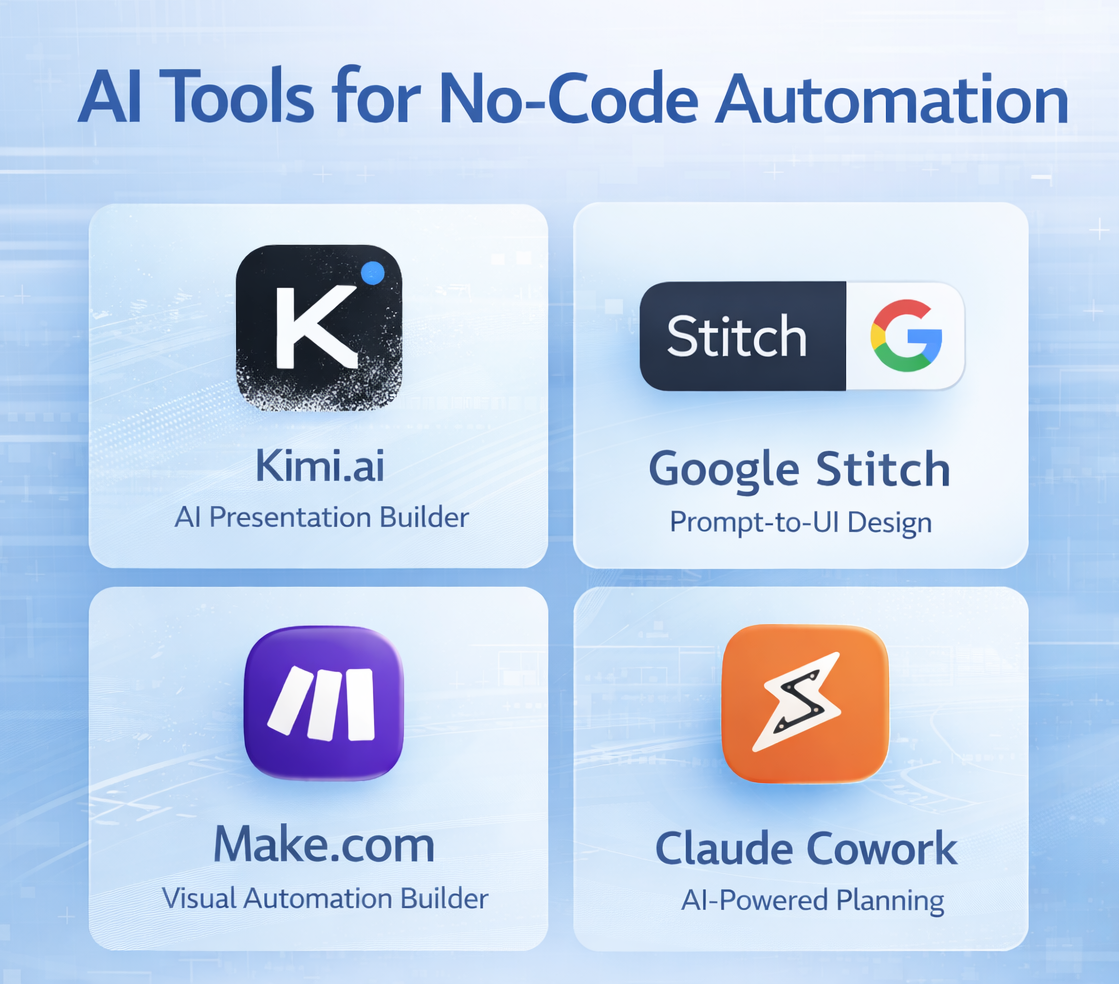
The workshop was built around a simple premise: every tool you'll use today is an AI agent. Kimi.ai, Google Stitch, Make.com, and Claude Cowork are all LLMs wrapped in logic that let them work independently on your behalf.
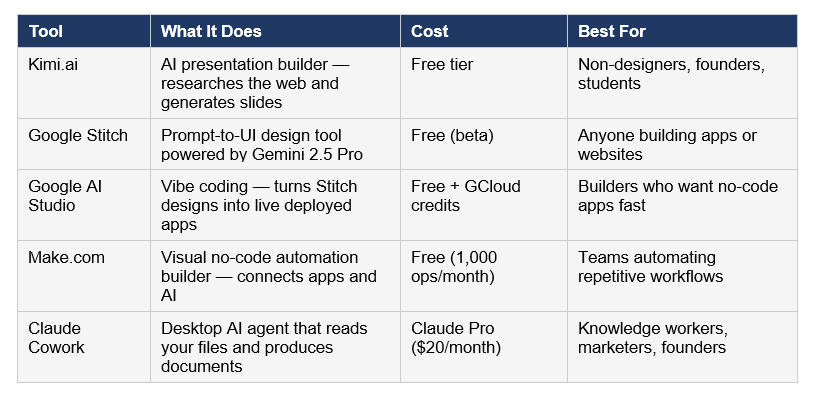
My honest take: the free tiers are genuinely useful. You don't need to pay anything to build your first automation, your first app, or your first AI-generated deck. The only paid requirement in the entire workshop was Claude Pro ($20/month) for Cowork - and that's optional until you're ready to use it seriously.
Tool 1: Build AI-Powered Presentations with Kimi.ai
Kimi.ai creates a full slide deck from a single prompt - by actually researching the topic first. Before generating your first slide, it browses 30 to 50 web pages in seconds, builds an outline, and then gives you a chance to edit before building the visual deck.
How to Create a Presentation in Under 5 Minutes
• Go to kimi.com and sign in with Google or email
• Select the Slides mode from the top of the interface
• Write a specific prompt - include your role, the purpose, and any themes
• Review the AI-generated outline and remove or add slides before building
• Click Generate Slides - Kimi handles themes, images, and layout automatically
• Export as .pptx or send directly to Google Slides
The sample prompt used in the workshop: "I recently read the book Psychology of Money. Create slides on how I can apply its concepts as a bootstrapped founder." The specificity is the secret - Kimi produces far better output when it knows who you are and why you need the slides.
One useful tip that came out of the session: if your company has strict brand guidelines, use Gamma.app instead. It gives you more control over templates and visual identity. Kimi is faster and better for rapid first drafts when brand consistency isn't the priority.
For a deeper look at Kimi's AI capabilities and how it compares to Claude on coding and agentic tasks, see the Kimi K2.5 vs Claude review.
Tool 2: Design Your App with Google Stitch
Google Stitch is an AI-native design canvas - think Figma, but powered by Gemini 2.5 Pro and fully prompt-driven. You describe your app in plain language, and Stitch generates the full UI: color palette, typography, component layout, individual screens. Currently in beta and completely free.
How to Design an App in Google Stitch
• Go to stitch.withgoogle.com and log in with a Google account
• Write a detailed prompt: app concept, core features, target audience, visual style preferences
• Stitch builds a design system first - colors and fonts - then generates individual screens
• To change direction, prompt it: "make it electric blue with a white background"
• All design versions are saved - browse and switch between iterations any time
The workshop prompt: "Create a meditation app inspired by ancient Indian culture. Three features: daily meditation with a timer, snippets from Indian scriptures, and a journaling section. Use rustic, earthy tones and yellow buttons."
The detail about yellow buttons is deliberate. Mentioning something specific and small lets you immediately verify whether the AI actually followed your instruction - a fast signal about how closely the agent is listening.
If you want to understand how Google Stitch fits into the full design-to-deployment workflow with Firebase backend included, the Google AI Studio vibe coding guide covers every step in detail.
Tool 3: Deploy a Live App with Google AI Studio
Google AI Studio converts your Stitch designs into working, deployed applications - without you writing a single line of code. The handoff is seamless: you export directly from Stitch to AI Studio, the Antigravity coding agent takes over, and within minutes you have a shareable URL.
From Design to Live App: The Full Workflow
• In Stitch, click the screen you want to build first
• Click More > Export > Build with AI Studio - your design transfers with all images intact
• In AI Studio, press Enter to confirm - the coding agent generates all necessary files
• Click Publish - connect your Google Cloud account (new accounts get $300 free credits)
• Share the live link immediately - or go back to AI Studio to fix any bugs in plain language
The full journey in one line: Idea to Google Stitch (design) to AI Studio (code) to Google Cloud (deploy) to live shareable link. The workshop completed this end-to-end in under 30 minutes. That's not a marketing stat - I watched it happen.
The gen-ai-experiments cookbook on GitHub has a dedicated workshop notebooks folder with step-by-step build sessions - including agentic app builds you can run and modify yourself.
Tool 4: Build a Personalized Email Automation with Make.com
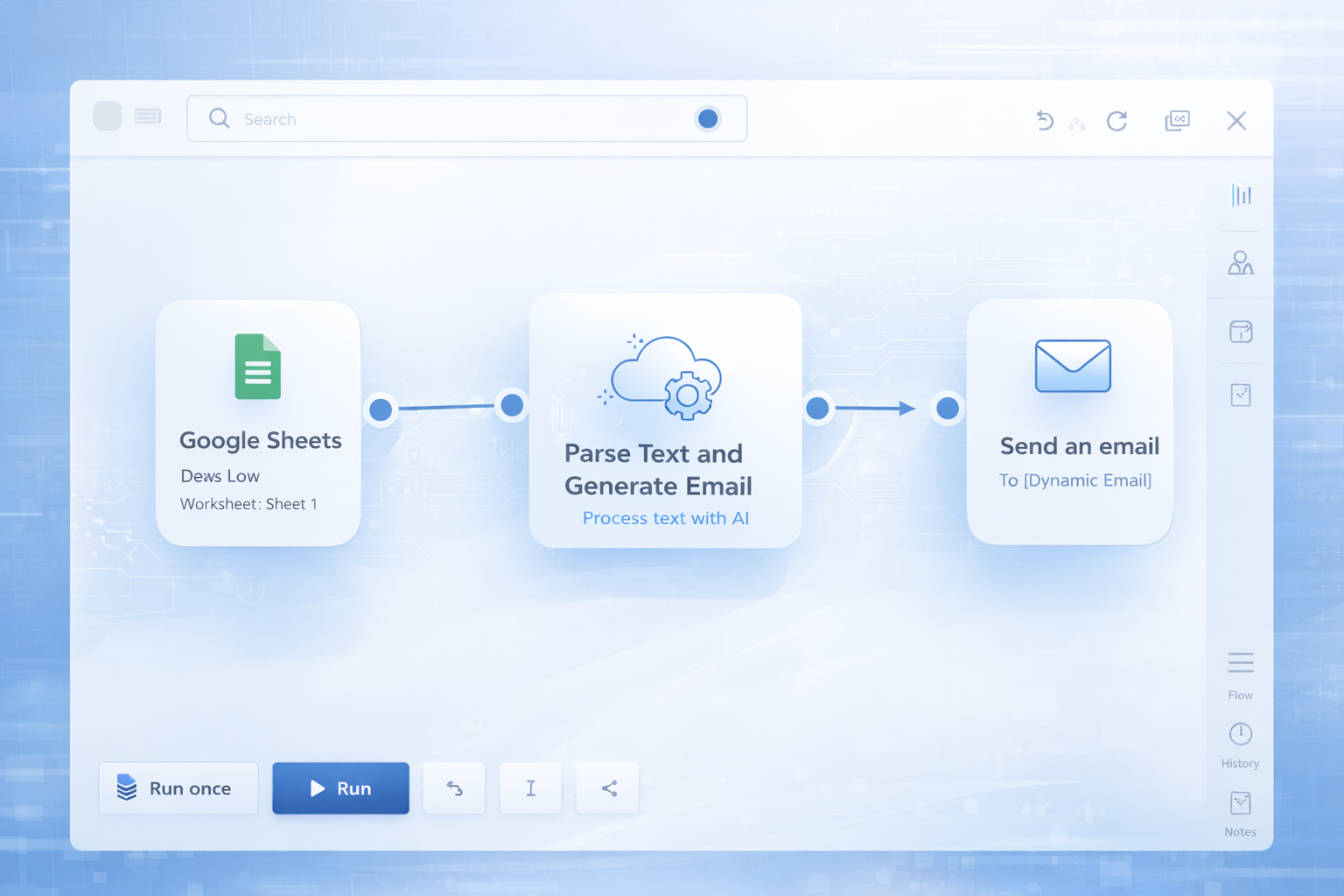
Make.com is where you build your own AI agents from scratch, visually. You connect a trigger - something that happens - to a series of actions - things AI should do in response. No code. The free tier gives you 1,000 automations per month.
The workshop example was a practical one: whenever someone registers for a workshop in a Google Sheet, automatically generate and save a personalized email for them - written by GPT-4o mini with their name, role, and company baked in.
Step-by-Step: Build the Registration Email Automation
• Sign up at make.com and click Create a Scenario
• Add the trigger node: search Google Sheets and select Watch New Rows - connect your registration sheet
• Add the AI node: search OpenAI, select Create a Completion, choose GPT-4o mini
• Write your prompt referencing sheet columns dynamically - column B for name, C for role, D for company
• Add an output node: Google Sheets > Update a Row - map the AI output to column E
• Click Run Once to test - column E should now contain a personalized email for each registrant
The prompt used in the workshop:
"Following are the details of a person who has registered for a Generative AI workshop. Name: [Column B] | Role: [Column C] | Company: [Column D]. Write a personalized email as Satvik, founder of Build Fast with AI, explaining how the 8-week Generative AI Launchpad can help their career. Keep it under 125 words."
Once the basic automation works, add a Router node to branch into parallel actions: update the sheet, send via Gmail, log in Notion, post a Slack notification - all from the same trigger.
For a practical beginner guide to building your first AI agent from the ground up, the Build Your First AI Agent and Automation post walks through the exact same Make.com workflow with ready-to-use prompts.
Tool 5: Create a Full Marketing Plan with Claude Cowork
Claude Cowork is the most powerful tool in this workshop - and also the most underused. It's a desktop AI agent that reads files directly from a folder on your computer, plans a complex task, executes it across multiple steps, and produces finished documents. All without you supervising.
Requirements: Claude Pro subscription ($20/month) and the Claude desktop app (not the web version). If you have both, Cowork is a different category of tool than anything else covered here.
How to Create a Marketing Campaign from Your Own Documents
• Create a folder on your desktop with relevant files: course info, brand guidelines, past content
• Open the Claude desktop app and select Claude Cowork from the mode selector
• Click Link Folder and select your folder - Cowork can now read everything inside it
• Write your prompt with three parts: role (give Cowork a character), task (specific deliverables), output format (exact files to produce)
• Press Enter - Cowork breaks the task into a to-do list, reads your documents, and starts generating files
• Open your folder when finished - you'll find the completed Excel calendar and Word documents waiting
The workshop prompt:
"You are an expert social media strategist. I am launching a new cohort of the Generative AI Launchpad in the first week of May. Create a one-week campaign. For LinkedIn: 3 posts for working professionals. For Twitter/X: 3 posts per day for software developers. For Blog: 1 post on getting started in Generative AI. Output: an Excel file with the full posting schedule plus a Word document with the blog post."
What Cowork produced in the session: a full Excel calendar with 21 tweets, 3 LinkedIn posts, posting times, character counts, and a complete 1,500-word blog post - in under five minutes. The output was ready to use, not a rough draft.
To see how Claude compares to other frontier models for content creation and agentic tasks, read the best AI model per task guide for 2026.
How to Write Prompts That Actually Work
The single most important skill for AI agents is prompt writing. Not tool selection. Not model choice. Prompting. Satvik's three-part framework applies to every tool in this workshop.
Part 1 - Context: Give the AI a Role
Tell the agent who it is in this task. "You are an expert social media strategist who specialises in marketing AI courses." This frames the tone, expertise, and perspective it brings. Without a role, you get generic output. With a role, you get targeted output.
Part 2 - Task: Be Specific About What You Want
Include the platform, audience, frequency, and any constraints. "Create 3 LinkedIn posts for working professionals, under 250 words each, launching in the first week of May." Vagueness costs you revisions.
Part 3 - Output Format: Tell It What Files to Produce
This is the part most people miss. Specifying format is what gets you usable files instead of a wall of text in the chat window. "Give me an Excel file with columns for date, platform, post copy, and hashtags - plus a Word document for the blog post."
The most common mistake: writing the task but forgetting the output format. Always end your prompt by specifying exactly how you want the result delivered.
What to Learn Next: Three Steps That Actually Work
- Step 1 - Foundations first: Every AI product today is built on prompting, RAG, agents, and fine-tuning. Understand the basics of each before going deep into one. The Gen AI Launchpad covers all four in structured live sessions.
- Step 2 - Apply it to your domain: For every tool you learn, take 10 minutes and ask: where does this save time in my job? If you learned Make.com today, what repetitive email or reporting task can you automate this week?
- Step 3 - Build something: Pick one automation you'd genuinely benefit from and build it before the weekend. A working automation that saves you 30 minutes beats a hundred hours of passive learning.
The 8-Week Generative AI Launchpad (Cohort 25) is Satvik's structured program covering LLMs, chatbots, image generation, automation, and vibe coding - with live weekend lectures, hands-on projects, and a capstone build. View details at buildfastwithai.com.
Frequently Asked Questions
What is an AI agent, and how is it different from a chatbot?
An AI agent is a language model combined with logic that lets it plan, act, and execute multi-step tasks autonomously - without constant human direction. A regular chatbot like ChatGPT waits for each input and responds once. An AI agent receives a goal, breaks it into steps, uses external tools, and produces results on its own.
How do I automate my work with AI without knowing how to code?
Use a visual no-code automation tool like Make.com, which connects apps with a drag-and-drop interface. You set up a trigger (like a new row in Google Sheets), add an AI node (GPT-4o mini or Claude), and define an output (write back to the sheet, send a Gmail, post to Slack). The free tier supports 1,000 automations per month - enough to build serious workflows.
Is Kimi.ai really free for creating presentations?
Yes. Kimi.ai offers a free tier that covers presentation creation. The tool researches your topic (browsing 30-50 pages), generates a slide outline for your review, then builds the full deck with themes, images, and layout. Premium features exist but are not required to produce a complete, usable presentation from a single prompt.
What is Google Stitch and how does it work?
Google Stitch is a browser-based AI design tool powered by Gemini 2.5 Pro. You describe your app idea in plain language -including features, audience, and visual style -and Stitch generates a full UI design: color system, typography, and screen-by-screen layouts. It exports directly to Google AI Studio for code generation and deployment. Currently in beta and free to use.
Do I need to write code to deploy an app with Google AI Studio?
No. Google AI Studio's Build mode (powered by the Antigravity coding agent) generates all the code from your description or a Stitch design export. It sets up the frontend, backend (via Firebase), and hosting -then gives you a shareable URL. The entire process from design to live deployment takes under 30 minutes with no manual coding required.
What does Claude Cowork do that regular Claude can't?
Claude Cowork is a desktop-only AI agent that can access files in a folder on your computer. It reads your documents, plans a multi-step task, executes it autonomously, and produces finished files -like Excel content calendars and Word blog posts - without supervision. Regular Claude (web version) cannot access your local files and requires you to paste content manually into the conversation.
What is the 8-Week Generative AI Launchpad?
The Generative AI Launchpad is Build Fast with AI's structured 8-week live program taught by Satvik Paramkusham. It covers LLMs, chatbots, image generation, automation, agent frameworks (Make, n8n, LangGraph), and vibe coding -with live weekend lectures, doubt-solving sessions, hands-on projects, and a capstone build. Cohort 25 is currently enrolling at buildfastwithai.com.
Is Make.com better than Zapier for AI automations?
For complex AI workflows, Make.com is generally more flexible. It handles branching logic, loops, and multi-path routing better than Zapier's linear model -which matters when you're connecting triggers to AI nodes to multiple output actions in parallel. Make's free tier includes 1,000 operations per month. Zapier's free tier is more limited but simpler to use if you need quick single-step automations.
Recommended Blogs
These posts are directly related to what you just read:
• Build Your First AI Agent and Automation (Make.com step-by-step)
• Best AI Agent Frameworks in 2026: LangGraph, CrewAI, AutoGen and More
• AI in 2026: Your Survival Guide to the Fourth Year of Generative AI
• Best AI Model Per Task in 2026: Coding, Writing, Research and More
• Kimi K2.5 Review: Is It Better Than Claude for Coding? (2026)
References
1. Build Fast with AI Workshop Recap: Master Agentic AI with No Code (April 2026)
2. Make.com — Official Site and Free Tier Details
3. Google Stitch — AI Design Tool (Beta)
4. Google AI Studio — Build Mode (Antigravity Agent)
5. Kimi.ai — AI Presentation Builder
6. Build Fast with AI GitHub: 130+ Gen AI Experiments & Cookbooks
7. Google AI Studio Vibe Coding Full Guide — BuildFastWithAI
8. Best AI Agent Frameworks 2026: LangGraph, CrewAI, AutoGen — BuildFastWithAI

