



Google Gemini Skills in Chrome: The Complete 2026 Guide
Every day, millions of people type the same AI prompt into Gemini - over and over again. "Make this recipe vegan." "Compare these two products." "Summarize this document." On April 14, 2026, Google decided that was enough. Enter Gemini Skills in Chrome: the feature that turns your most-used prompts into one-click superpowers, permanently attached to your browser.
This is not a minor quality-of-life update. Skills represent Google's most aggressive move yet to make Gemini feel indispensable - not just as a chatbot you visit, but as an intelligent layer woven into your entire web experience. Here's everything you need to know about how it works, who gets it, and whether it actually lives up to the hype.
1. What Are Gemini Skills in Chrome?
Gemini Skills in Chrome are reusable, one-click AI workflows built directly into the Chrome browser's Gemini sidebar. Instead of typing the same prompt repeatedly across different web pages, you save it once as a "Skill" - then trigger it instantly on any page, or across multiple tabs, with a single click or slash command.
Think of Skills as keyboard macros for AI. The moment you craft a prompt that gets the job done, you turn it into a permanent tool that lives in your browser. Google officially launched the feature on April 14, 2026, rolling it out to Chrome desktop users globally (English-US language setting required at launch).
If you've been following how AI is reshaping productivity tools, you'll recognize this pattern - it's the same philosophy behind building reusable AI agents with Python and LangChain, where the goal is always to automate the repetitive so you can focus on the creative.
2. How to Save and Use a Skill - Step by Step
Google has made the process refreshingly simple. Here is the exact workflow:
Saving a New Skill
Open Chrome on your desktop (Mac, Windows, or ChromeOS) and make sure you're signed into your Google account.
Open the Gemini sidebar (the "G" icon in the top-right corner of Chrome).
Type any prompt you use regularly - for example: "List all the key ingredients in this recipe and flag anything non-vegan."
After Gemini responds, look for the "Save as Skill" option directly in your chat history.
Give your Skill a name and assign an emoji to identify it quickly.
Done. Your Skill is now saved and synced across all your signed-in Chrome desktop devices.
Using a Saved Skill
Navigate to any web page where you want to run the Skill.
Open the Gemini sidebar and type a forward slash ( / ) in the chat box.
Your saved Skills appear instantly - select the one you want.
Alternatively, click the plus sign ( + ) button in the Gemini interface to access Skills.
Gemini runs the prompt on the page you're viewing. You can also select additional open tabs to run it across multiple pages simultaneously.
Managing Your Skills
To edit, delete, or browse all saved Skills: type the forward slash ( / ) in the Gemini chat box and click the compass icon. You can also visit chrome://skills/browse directly in your address bar to explore the pre-built library.
Pro tip: Skills work best when your prompts are specific and context-aware. If you want to go deeper on prompt engineering strategies that make these workflows truly powerful, check out this practical guide to prompt engineering for beginners.
3. The Gemini Skills Library: 50+ Pre-Built Prompts
Don't want to start from scratch? Google has launched a library of more than 50 ready-to-use Skills covering the most common browsing tasks. These are organized into five major categories:
- Learning - Summarize articles, explain concepts, quiz you on content
- Research - Cross-reference sources, extract key data points, fact-check claims
- Shopping - Compare products across tabs, find vegan substitutions, analyze ingredients
- Writing - Rewrite in different tones, check grammar, generate outlines
- Productivity - Summarize long documents, extract action items, generate meeting notes
Some standout pre-built Skills include: "Protein Maximizer" (calculates macro breakdowns from recipe pages), "Gift Concierge" (cross-references a recipient's interests with your budget across tabs), and "Document Speed-Read" (scans lengthy PDFs or articles to surface the key insights in seconds).
You can use any library Skill as-is, or customize its underlying prompt to better fit your workflow. This is a smart design choice - it lowers the barrier for new users while still giving power users full control.
4. Multi-Tab Superpowers: Running Skills Across Pages
This is the feature that genuinely sets Gemini Skills apart from anything else in the browser AI space right now. When you trigger a Skill, Chrome lets you select additional open tabs to include in the same run.
What this means in practice: you could have five product pages open across different retailer tabs - Amazon, Flipkart, and three brand sites - select all five when running your "Price and Spec Comparison" Skill, and Gemini will synthesize a side-by-side comparison pulling from all five pages simultaneously.
Early testers used this for everything from calculating protein macros across multiple recipe pages to scanning legal documents and summarizing key clauses. This multi-context reasoning capability is exactly the kind of agentic behavior that AI agent frameworks like AutoGen are designed to replicate - except now it's built right into your browser.
One hot take: multi-tab Skills execution is the single most underrated part of this launch. It quietly makes Gemini in Chrome more capable than most standalone AI research tools for everyday web research tasks.
5. Privacy and Security: What Google Promises
Skills inherit Chrome's existing security and privacy architecture, which means the same safeguards that apply to regular Gemini prompts apply to Skill-triggered prompts too.
Crucially, Skills will always ask for your explicit confirmation before taking sensitive actions. If a Skill involves sending an email, adding an event to Google Calendar, or any other action that reaches outside the browser's read function, Gemini will pause and ask you to confirm before proceeding.
- Automated red-teaming: Google red-teams Skills prompts to catch adversarial or harmful instructions.
- Auto-update protections: Chrome's layered update system applies to Skills behavior as well.
- No silent actions: Confirmation prompts are mandatory for any Skill that writes, sends, or modifies data.
Honest caveat: Google has not published a detailed technical whitepaper on exactly how Skill prompts are stored, transmitted, or used for model training. For anything sensitive - HR documents, financial data, medical records - apply the same caution you would to any cloud AI tool.
6. Gemini Skills vs. ChatGPT Browser Extensions
The browser AI arms race is well and truly on. Here is how Gemini Skills stacks up against ChatGPT's browser extension ecosystem:
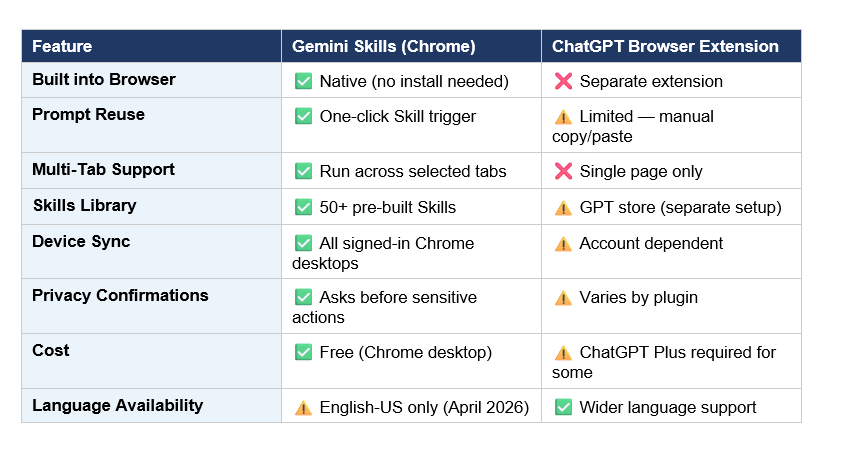
The verdict: Gemini Skills wins on native integration and multi-tab capability. ChatGPT extensions win on language availability and the depth of the GPT store ecosystem. For Chrome-native users who want something that just works without setup, Skills is the stronger choice right now.
For a broader view of where AI browser tools are heading in 2026, our comparison of the top AI productivity tools for daily use breaks down the competitive landscape in detail.
7. Availability: Who Gets It and When?
As of April 14, 2026, Gemini Skills is rolling out with the following conditions:
- Platform: Chrome desktop only - Mac, Windows, and ChromeOS.
- Language: Chrome browser language must be set to English (US). Other languages are not yet supported at launch.
- Account: You must be signed into a Google account in Chrome.
- Cost: Free - no Google AI Pro or paid subscription required.
- Sync: Saved Skills sync automatically across all signed-in Chrome desktop devices.
For users in India, Europe, or other non-US English markets: the feature should technically be accessible if you switch your Chrome language to English (US) in settings. However, Google has not officially confirmed full international availability at this stage. Given that Chrome has over 3.3 billion active users globally, international language rollout is likely a near-term priority.
8. Real-World Use Cases That Will Change How You Browse
Here are eight concrete use cases where Gemini Skills delivers immediate, measurable value:
Vegan Recipe Conversion - Visit any recipe site, trigger your "Make It Vegan" Skill, get instant substitution suggestions without leaving the page.
Protein Macro Calculator - Open a recipe or menu, run the "Protein Maximizer" Skill to get full macro breakdown in seconds.
Competitive Price Analysis - Open 4–5 product tabs, run a comparison Skill across all tabs simultaneously to get a ranked, synthesized comparison.
Academic Research Digest - Open multiple research paper or news articles, run a "Key Findings Extractor" Skill to surface the most important points across all sources.
Document Speed-Read - Paste or open a long PDF or legal document, trigger a summarization Skill to extract key clauses and action items.
Tone Transformer for Writing - Highlight any text, run a "Professional Tone" or "Casual Tone" Skill to get an instantly rewritten version.
Gift Finder - Open several product pages, run the "Gift Concierge" Skill with your budget and the recipient's interests to get curated recommendations.
YouTube Script Analyzer - Open any YouTube video page, run a summarization Skill to get the key points even without watching the video.
If you want to build similar automated workflows outside the browser - say, for batch-processing documents or running AI pipelines on data - this hands-on cookbook for building Gemini-powered Python workflows is an excellent next step.
9. Honest Take: What's Impressive and What's Missing
What Google Got Right
The native-browser integration is the real win here. No extension to install, no API key to configure, no separate app to open. Skills feel like a natural extension of how you already use Chrome - and that frictionlessness matters enormously for adoption at scale.
The multi-tab execution is genuinely novel. No other mainstream browser AI tool currently lets you run a single prompt across multiple open tabs in one shot. That alone could change how millions of people do online research and shopping.
What's Still Missing
English-US only at launch is a real limitation for a product that's supposed to tap Chrome's 3.3 billion global user base. There's no mobile support yet - Gemini Skills is desktop-only, which means it's unavailable to the large portion of users (especially in markets like India) who browse primarily on Android.
There's also no public documentation on whether Skill prompts are used for model training. Google should clarify this clearly, especially since Skills will inevitably handle sensitive content as adoption grows.
And finally - no API access yet. If you're a developer who wants to build Skills-like automation into your own products, you'll need to look at the Gemini API and function calling capabilities for now.
Frequently Asked Questions
What is the Gemini Skills feature in Chrome?
Gemini Skills in Chrome are reusable one-click AI workflows built into Chrome's Gemini sidebar. You save any Gemini prompt as a named Skill, then trigger it on any web page by typing a forward slash ( / ) or clicking the plus button - no retyping required. Skills can run across multiple selected tabs simultaneously.
How do I save a Gemini prompt as a Skill in Chrome?
Open the Gemini sidebar in Chrome, type your prompt, and wait for the response to appear in your chat history. After the conversation, you'll see an option to "Save as Skill" directly from the chat view. Name it, add an emoji if you like, and it's saved immediately and synced across your signed-in Chrome desktops.
Is Gemini Skills available in India and other countries?
As of April 14, 2026, Skills is rolling out globally to Chrome desktop users, but only when Chrome's browser language is set to English (US). Users in India, Europe, and other regions can technically access it by switching their browser language to English (US) in Chrome settings. Google has not confirmed a non-English rollout timeline yet.
How do I access the Gemini Skills library in Chrome?
Type a forward slash ( / ) in the Gemini sidebar chat box, then click the compass icon to manage your Skills or browse the library. You can also navigate directly to chrome://skills/browse in your Chrome address bar to see the full library of 50+ pre-built Skills organized by category (Learning, Research, Shopping, Writing, Productivity).
Can Gemini Skills run across multiple browser tabs?
Yes - this is one of the standout features. When you trigger a Skill, Chrome lets you select additional open tabs to include in the same Skill run. Gemini will then process all selected pages together, making it possible to do things like generate a side-by-side product comparison across five retailer tabs at once.
Is the Gemini Skills feature free to use?
Yes. Gemini Skills is free for any Chrome desktop user who is signed into a Google account. You do not need Google AI Pro, Google AI Ultra, or any paid subscription to save and use Skills. The feature is part of the standard Gemini integration in Chrome.
What are the best Gemini Skills to try first?
Great starting Skills include: the "Protein Maximizer" for recipe nutrition analysis, "Gift Concierge" for cross-tab shopping recommendations, "Document Speed-Read" for summarizing long articles or PDFs, and "Vegan Recipe Converter" for ingredient substitutions. All of these are available in the pre-built Skills library at chrome://skills/browse.
How is Gemini in Chrome different from ChatGPT browser extensions?
The biggest differences are native integration and multi-tab support. Gemini Skills is built directly into Chrome - no separate extension install needed. It also uniquely supports running one prompt across multiple selected tabs simultaneously, which ChatGPT extensions do not currently offer. ChatGPT extensions have broader language support and a larger plugin ecosystem via the GPT store. Gemini Skills is English-US only at launch.
References
Google Official Blog - "Turn your best AI prompts into one-click tools in Chrome" (April 14, 2026):
TechCrunch - "Google adds AI Skills to Chrome to help you save favorite workflows" (April 14, 2026):
9to5Google - "Google announces Skills for Gemini in Chrome to quickly run custom workflows" (April 14, 2026):
Search Engine Journal - "Google Chrome Skills Turn Gemini Prompts Into Reusable Workflows" (April 15, 2026):
Digital Trends - "You can now save and reuse Gemini prompts in Chrome with the new Skills feature" (April 14, 2026):
MacRumors - "Gemini in Google Chrome Gets a Skills Library for Saving Custom AI Prompts" (April 14, 2026):
Technobezz - "Google Adds AI Skills to Chrome for Reusable Gemini Prompts" (April 14, 2026):

