Will you watch from the sidelines as innovation unfolds, or will you be in the driver’s seat?
Gen AI Launch Pad 2025 is waiting.
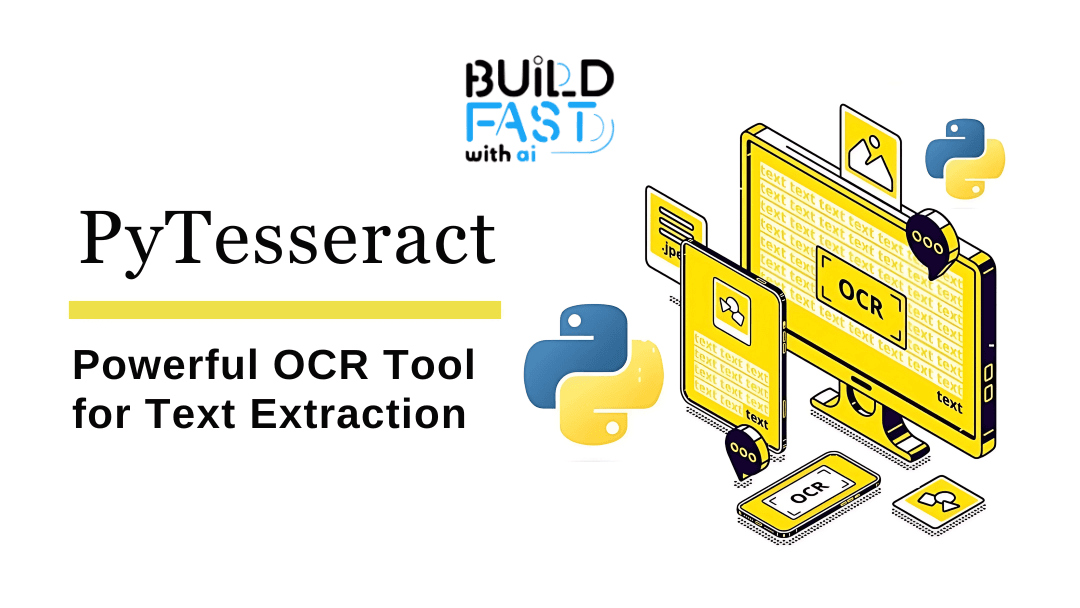
In today’s digital age, extracting text from images, scanned documents, or handwritten notes has become a critical task for many applications. Whether you're automating document processing, digitizing recipes, or analyzing PDFs, Optical Character Recognition (OCR) is the technology that makes it all possible. Among the many OCR tools available, PyTesseract stands out as a powerful and versatile Python wrapper for Tesseract OCR. In this blog, we’ll dive deep into how you can use PyTesseract to extract text from images, preprocess images for better accuracy, and even integrate it with AI tools like Google’s Gemini for advanced text processing.
What is PyTesseract?
PyTesseract is an open-source Python library that acts as a wrapper for Tesseract OCR, one of the most accurate and widely used OCR engines. It allows you to extract text from images, scanned documents, and even handwritten notes with ease. PyTesseract supports over 100 languages and can handle a variety of image formats, including PNG, JPG, TIFF, and more.
Why Use PyTesseract?
- Multi-language Support: Extract text in over 100 languages.
- Versatility: Works with scanned documents, handwritten notes, and even complex images like recipes.
- Integration: Easily integrates with other AI tools and frameworks, such as Google’s Gemini, for advanced text processing.
- Open Source: Free to use and highly customizable.
Setting Up PyTesseract
Before we dive into the code, let’s set up PyTesseract on your system. Here’s what you need to install:
Installation Steps
- Install PyTesseract and Required Libraries:
!pip install pytesseract Pillow requests
!pip install pdf2image
- Install Tesseract OCR Engine:
- For Linux:
!sudo apt-get install tesseract-ocr
!sudo apt-get install -y poppler-utils
- For Windows: Download the Tesseract installer from here and add it to your system PATH.
- Install Google Generative AI (Optional):
- If you want to integrate PyTesseract with Google’s Gemini for advanced text processing, install the following:
!pip install google-generativeai
Importing Required Libraries
To get started, import the necessary Python libraries:
import requests  # For downloading images
from PIL import Image, ImageEnhance, ImageFilter  # For image processing
import pytesseract  # For OCR
from pdf2image import convert_from_path  # For converting PDFs to images
Downloading an Image
Before extracting text, you need an image to work with. Here’s a function to download an image from a URL:
def download_image(url, save_as):
    response = requests.get(url)
    if response.status_code == 200:
        with open(save_as, 'wb') as file:
            file.write(response.content)
        print(f"Image downloaded: {save_as}")
    else:
        print(f"Failed to download image from {url}")
Example Usage:
image_url = "https://images.saymedia-content.com/.image/t_share/MTc0NjE4NDM3OTk2MzI0ODA5/how-to-write-original-food-recipes-10-tips-for-making-your-recipes-easy-to-follow.gif"
image_name = "recipe_english.jpg"
download_image(image_url, image_name)
Extracting Text from an Image
Once you have an image, you can use PyTesseract to extract text from it. Here’s how:
def extract_text_from_image(image_path, lang='eng'):
    image = Image.open(image_path)
    text = pytesseract.image_to_string(image, lang=lang)
    return text
Example Usage:
recipe_text = extract_text_from_image(image_name)
print("Extracted Recipe:\n", recipe_text)
Preprocessing Images for Better OCR Accuracy
OCR accuracy can be significantly improved by preprocessing the image. Common techniques include converting the image to grayscale, sharpening, and increasing contrast.
def preprocess_image(image_path):
    image = Image.open(image_path).convert('L')  # Convert to grayscale
    image = image.filter(ImageFilter.SHARPEN)   # Sharpen the image
    enhancer = ImageEnhance.Contrast(image)
    image = enhancer.enhance(2)  # Increase contrast
    return image
Example Usage:
preprocessed_image = preprocess_image(image_name)
preprocessed_image.save("processed_recipe.jpg")
text_from_processed = pytesseract.image_to_string(preprocessed_image)
print("Extracted Text from Preprocessed Image:\n", text_from_processed)
Extracting Text from PDFs
PyTesseract can also extract text from PDFs by first converting the PDF pages into images.
Step 1: Download a PDF
url = 'https://www.sldttc.org/allpdf/21583473018.pdf'
response = requests.get(url)
with open('sample.pdf', 'wb') as f:
    f.write(response.content)
Step 2: Convert PDF to Images
images = convert_from_path('sample.pdf')
Step 3: Extract Text from PDF Images
text = ''
for image in images:
    text += pytesseract.image_to_string(image)
print(text)
Integrating PyTesseract with Google’s Gemini
Once you’ve extracted text, you can use Google’s Gemini to summarize or translate it.
Step 1: Set Up Gemini
import google.generativeai as genai
from google.colab import userdata

GOOGLE_API_KEY = userdata.get('GOOGLE_API_KEY')
genai.configure(api_key=GOOGLE_API_KEY)
model = genai.GenerativeModel("gemini-1.5-flash")
Step 2: Summarize Extracted Text
response = model.generate_content(f"Summarize the following content:\n\n{text}")
print("Summary:")
print(response.text)
Step 3: Translate Extracted Text
translation_response = model.generate_content(f"Translate the following text to French:\n\n{response.text}")
print("Translated Summary (French):")
print(translation_response.text)
Displaying Images
If you’re working in a Jupyter notebook or Google Colab, you can display images using the following code:
from IPython.display import Image, display
display(Image(url=image_url))
Conclusion
PyTesseract is a powerful and versatile tool for text extraction from images and documents. By combining it with image preprocessing techniques and AI tools like Google’s Gemini, you can unlock even more advanced capabilities, such as summarization and translation. Whether you’re automating document processing, digitizing handwritten notes, or analyzing PDFs, PyTesseract is an essential tool in your Python toolkit.
Try It Yourself!
Now that you’ve learned how to use PyTesseract, why not try it out on your own images or documents? Experiment with different preprocessing techniques and see how they affect OCR accuracy. And if you’re feeling adventurous, integrate it with other AI tools to create even more powerful workflows.
Resources for Further Learning
- PyTesseract GitHub Repository
- Tesseract OCR GitHub
- Pillow Documentation
- Google Generative AI Documentation
- PDF2Image Documentation
- Python Requests Documentation
- Tesseract Language Support
- OpenCV for Advanced Image Preprocessing
- Google Colab for Running Code
- Tesseract OCR Training Guide
- PyTesseract Experiment Notebook
---------------------------
Stay Updated:- Follow Build Fast with AI pages for all the latest AI updates and resources.
Experts predict 2025 will be the defining year for Gen AI Implementation. Want to be ahead of the curve?
Join Build Fast with AI’s Gen AI Launch Pad 2025 - your accelerated path to mastering AI tools and building revolutionary applications.
---------------------------
Resources and Community
Join our community of 12,000+ AI enthusiasts and learn to build powerful AI applications! Whether you're a beginner or an experienced developer, this tutorial will help you understand and implement AI agents in your projects.
- Website: www.buildfastwithai.com
- LinkedIn: linkedin.com/company/build-fast-with-ai/
- Instagram: instagram.com/buildfastwithai/
- Twitter: x.com/satvikps
- Telegram: t.me/BuildFastWithAI