



In under 30 minutes, I built an automation that watches for new leads in a Google Sheet, writes a personalized email using ChatGPT, stores it for review, and sends it — automatically. No code. No servers. No manual copy-pasting ever again.
What You'll Need
Skill level: Beginner. Time: 30 minutes. Cost: Free (or ~$0.10 per run with ChatGPT API).
Make.com account (free tier, no credit card needed)
OpenAI API key or ChatGPT connection in Make
Google Sheets (we'll use this as our lead database)
Slack or Gmail (for notifications and sending)
Why This Matters
If your job involves any kind of outreach — sales, marketing, recruiting, partnerships — you're probably spending hours writing emails that follow the same basic structure anyway. The only thing that changes is the name, the company, the role.
That's exactly what AI is perfect for. And Make.com is how you wire it all together without touching a single line of code.
The Automation We're Building
Here's the logic in plain English:
New row appears in Google Sheet → ChatGPT writes a personalized email → Email gets saved back to the sheet → Notification fires on Slack
Simple. Four steps. Let's build it.
Step 1: Open Make.com and Create a New Scenario
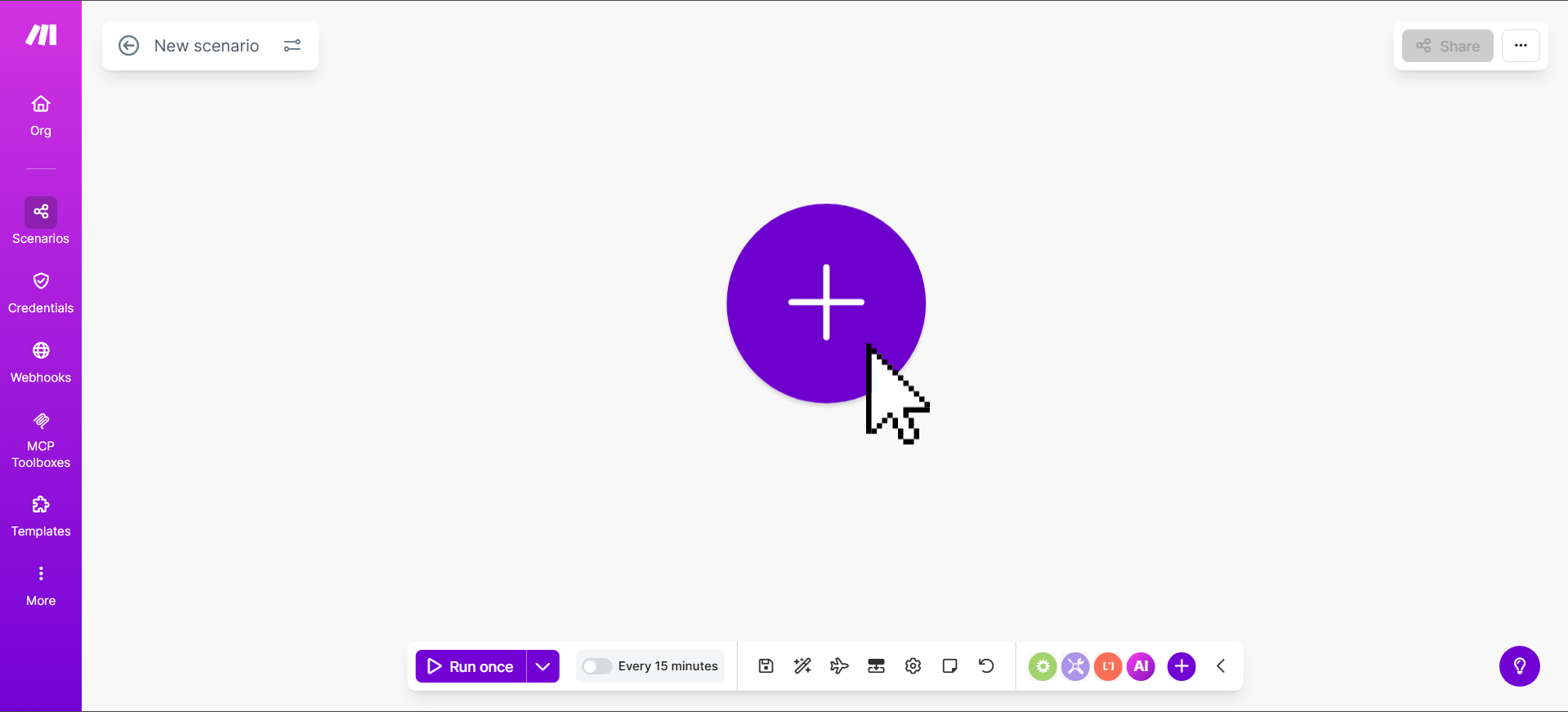
Log into Make.com. Click on Scenarios in the left sidebar, then hit Create a Scenario. You'll land on a blank canvas — this is where the magic happens.
Step 2: Connect Google Sheets as Your Trigger
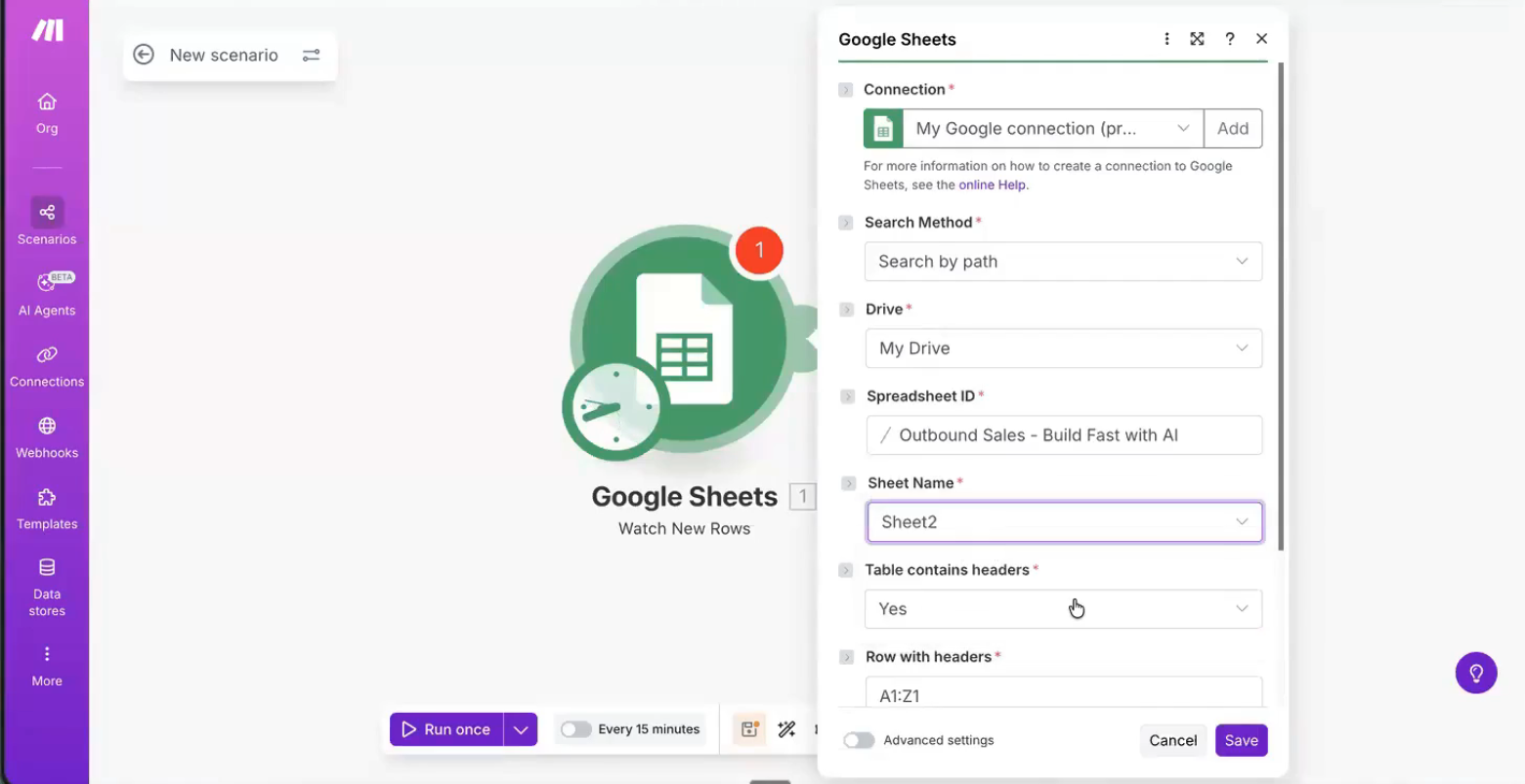
Click the + button and search for Google Sheets. Select the Watch New Rows module — this is what tells your automation to fire whenever a new lead appears in your sheet.
Connect your Google account, select your spreadsheet (in the demo, this is an Outbound Sales sheet), and choose the right tab. Set it to watch all rows.
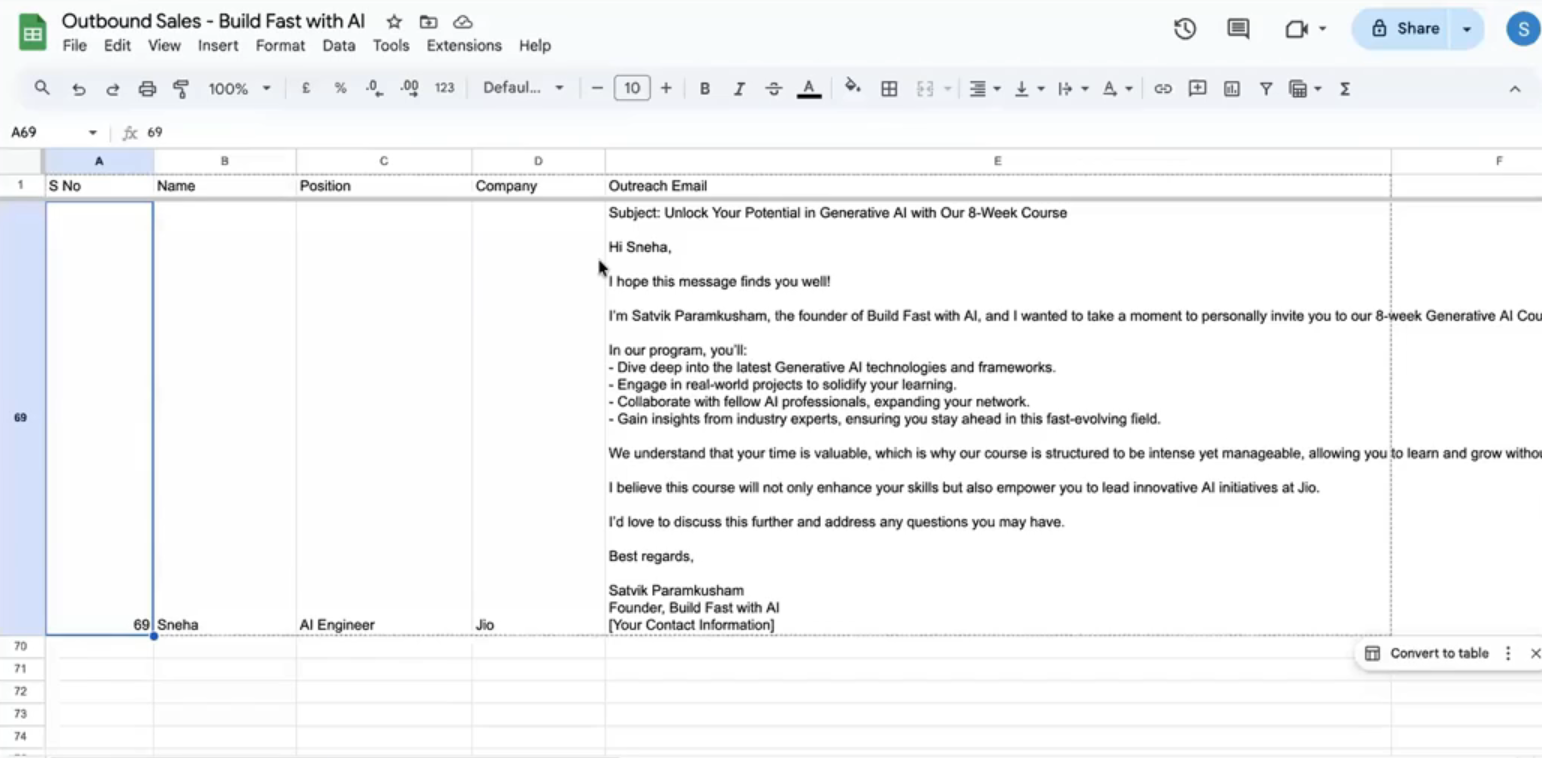
Your sheet should have columns for: Name, Designation, Company — these are what ChatGPT will use to personalize each email.
Step 3: Add ChatGPT to Write the Email
Click + again and search for ChatGPT. Select Simple Text Prompt.
Choose your model (GPT-4 or latest available), then write your prompt. Here's the one from the demo:
"You are a personal email assistant. The following person has shown interest in an 8-week Generative AI course. Name: [Column B]. Designation: [Column C]. Company: [Column D]. Write a personalized email on how this course can help them with their career. End with a thank you note."
The key step: map your Google Sheets columns into the prompt. Drag Column B into the Name field, Column C into Designation, Column D into Company. Make.com pulls the live data and drops it right into the prompt automatically.
Step 4: Save the Email Back to Your Sheet
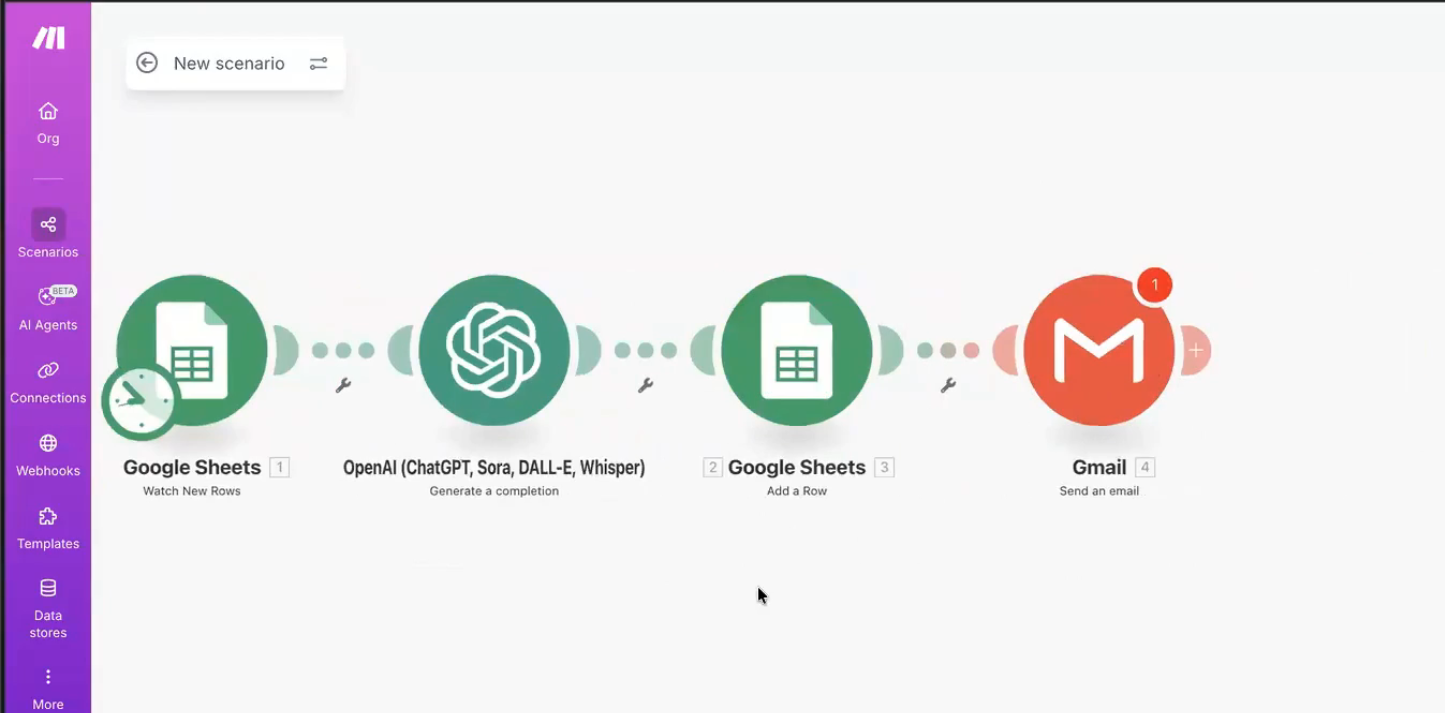
You don't want AI firing off emails blindly — you want an audit trail. So the next step saves ChatGPT's output back into Column E of the same sheet.
Add another Google Sheets module → select Add a Row → map the ChatGPT response into Column E. Now every email is logged against the person it was written for.
Step 5: Add Slack (or Gmail) Notifications
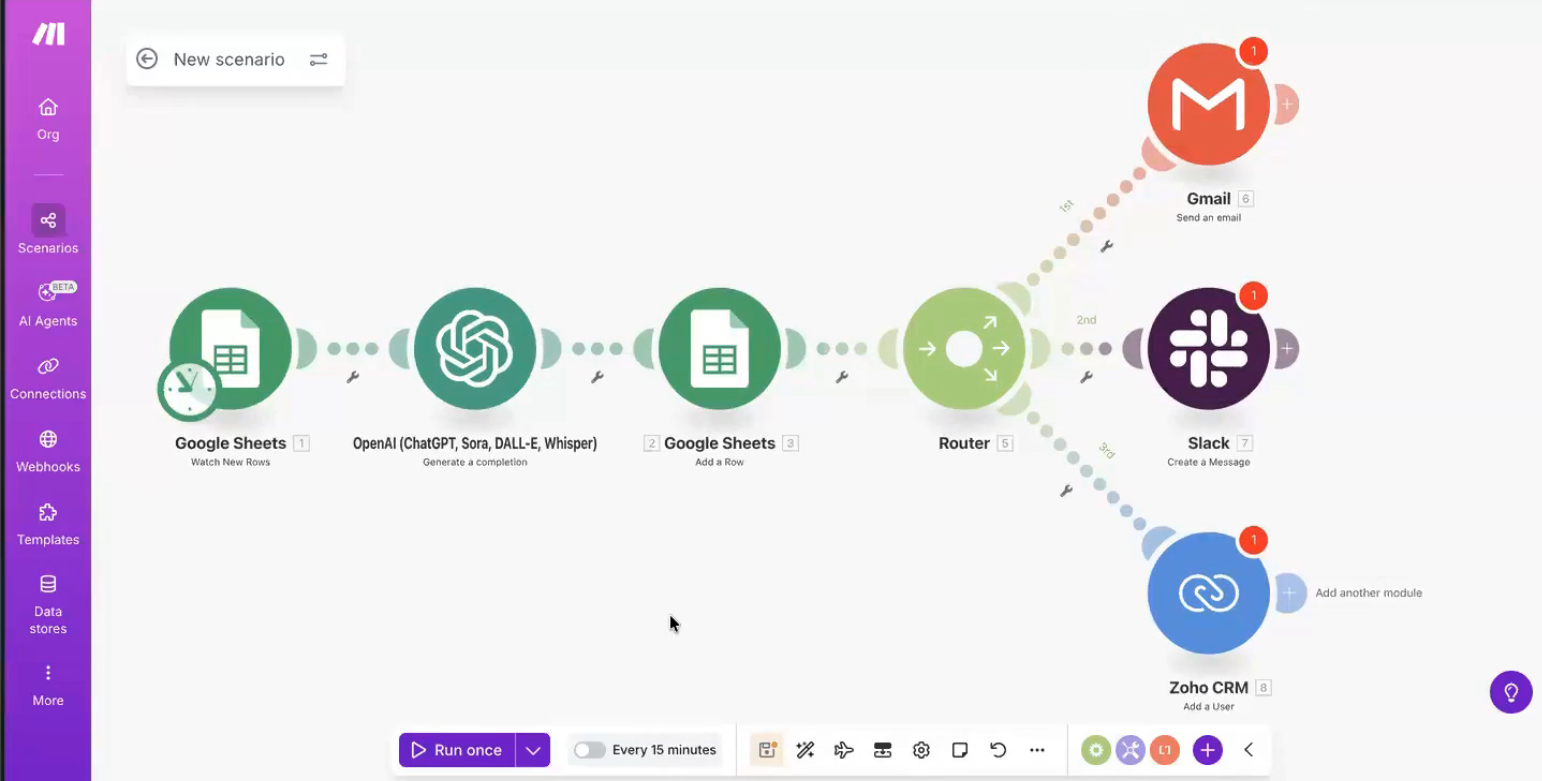
Want to be notified every time an email is written? Click the Router option on the ChatGPT module, then add a Slack module → Send Message. Map the ChatGPT output into the message body.
No Slack? Add a Gmail module instead → Send Email. Same logic, different destination.
Step 6: Test It
Hit Run Once. Go check your Google Sheet — Column E should now have a freshly written, personalized email for your latest lead. If it looks good, turn on the schedule and walk away.
What You Just Built
An outreach machine that runs itself. Every time a new lead hits your sheet, AI writes them a personalized email and logs it — in seconds, not hours.
What used to take 10 hours across a whole week now takes about 30 seconds per lead, automatically.
This same pattern works for: recruiting outreach, partnership emails, customer onboarding, follow-ups — anything where the structure stays the same but the details change.
Want to Go Deeper?
Join the BFWAI LaunchPad — video walkthroughs, copy-paste templates, and a community of people building exactly this kind of automation.

