


There's a version of AI that waits for you to ask it things.
Then there's Claude Cowork — a version that reads your files, makes decisions, creates deliverables, and drops them in your folder. Without you watching.
Most people are still using the first one. This post is about the second.
Here's your complete guide to the four tools and how to use them today.
Tool 1: Claude Artifacts
The fastest way to go from idea to working product → claude.ai
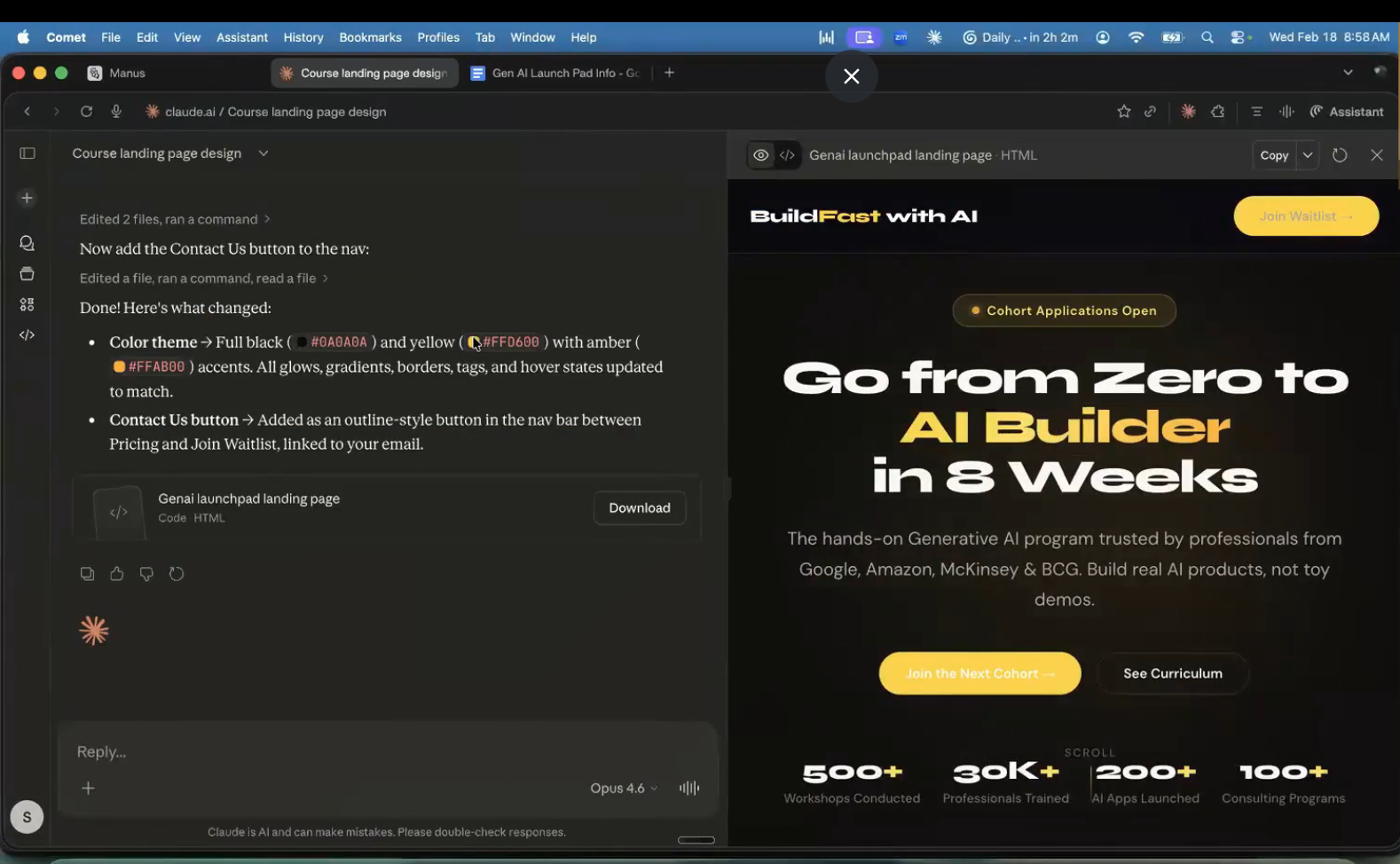
Think of Artifacts as Claude's "show your work" mode. It opens a live preview pane alongside your conversation — you watch the thing being built in real time.
What it can do:
Turn a raw document into a professionally designed landing page
Build interactive demos, games, and single-page apps
Publish instantly with one click — you get a live, shareable URL
No hosting setup. No deployment pipeline.
Best for: Landing pages, portfolio sites, interactive demos, simple apps — anything that lives in a browser. Ready in 1–5 minutes, no technical knowledge needed.
✅ Prompting Tips
❌ Vague:
Build a nice website
✅ Specific:
Build a modern SaaS landing page for a child neurology clinic with light blue, white, and soft green colours. Include testimonials, service sections, a contact form, and a clean, child-friendly design.
Iterate in plain English — don't touch the code. Just say: "Make the header sticky" or "Add a FAQ section below testimonials."
Publish early, share often — the link is live the moment you hit publish. Use it to get feedback before you're "done."
Tool 2: Claude Cowork
The AI that works on your files, not just in a chat window → Claude Desktop App: claude.ai/download (desktop only — not the web interface)
The key difference from Artifacts: Cowork creates things on your actual computer. Link a folder, give it a task, and finished files appear — ready to open in Word, Excel, or any other app.
What it can do:
Create and edit Excel files, Word docs, and more
Read existing files for context
Organise, rename, and move files autonomously
Run multi-step tasks while you're doing something else
What it can't do (yet): Access files outside the linked folder or handle real-time internet data (use Connectors for that).
How It Works
Open Cowork in the Claude desktop app
Link a folder on your computer
Give it a task — specific or open-ended
Let it run. Come back to finished deliverables.
The agent creates its own internal to-do list, executes each step, and notifies you when done. You don't babysit it.
Real Prompt: 7-Day Marketing Calendar
This prompt turned a single markdown file into a complete content calendar — LinkedIn posts, 35 tweets, and two blog posts — in under 10 minutes:
I want you to create a detailed marketing plan for my course.
You can find relevant files in the folder.

For LinkedIn: audience is non-technical professionals at large companies. Demystify AI but don't dumb it down. Mention technical details in a way that makes people feel confident. 2 posts per week.

For Twitter: audience is developers from SF and Bangalore. Write technical posts with code snippets about AI news and libraries. 5 tweets per day.

For blogs: combine both styles. 2 per week, keep them short.

Output: one Excel file with timeline, schedule, LinkedIn posts, and tweets. One Word doc for the blogs.

Please ask clarifying questions before you begin.
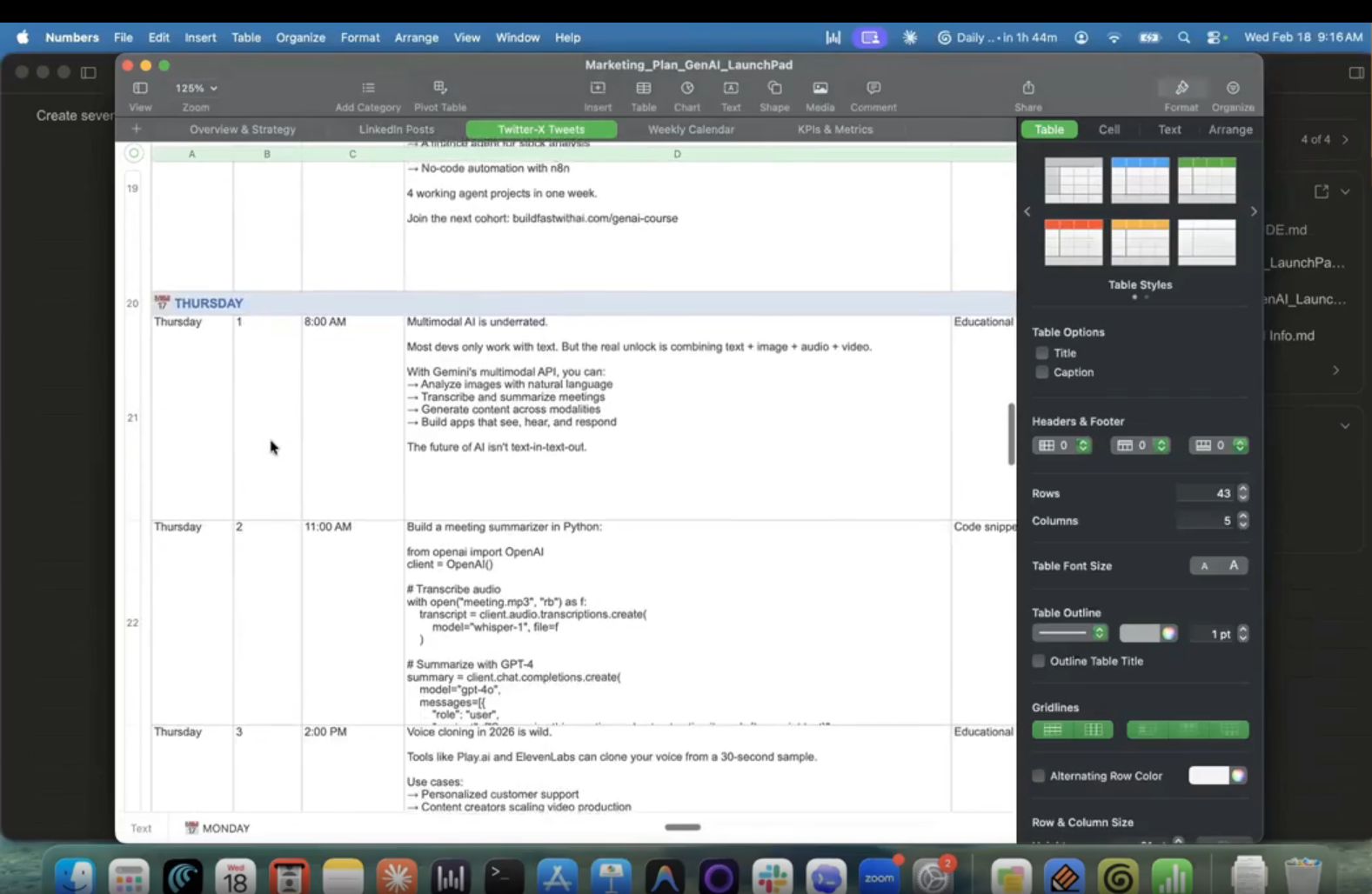
💡 Notice: The agent asked four clarifying questions before starting — and those answers shaped everything that followed.
Real Prompt: File Organisation
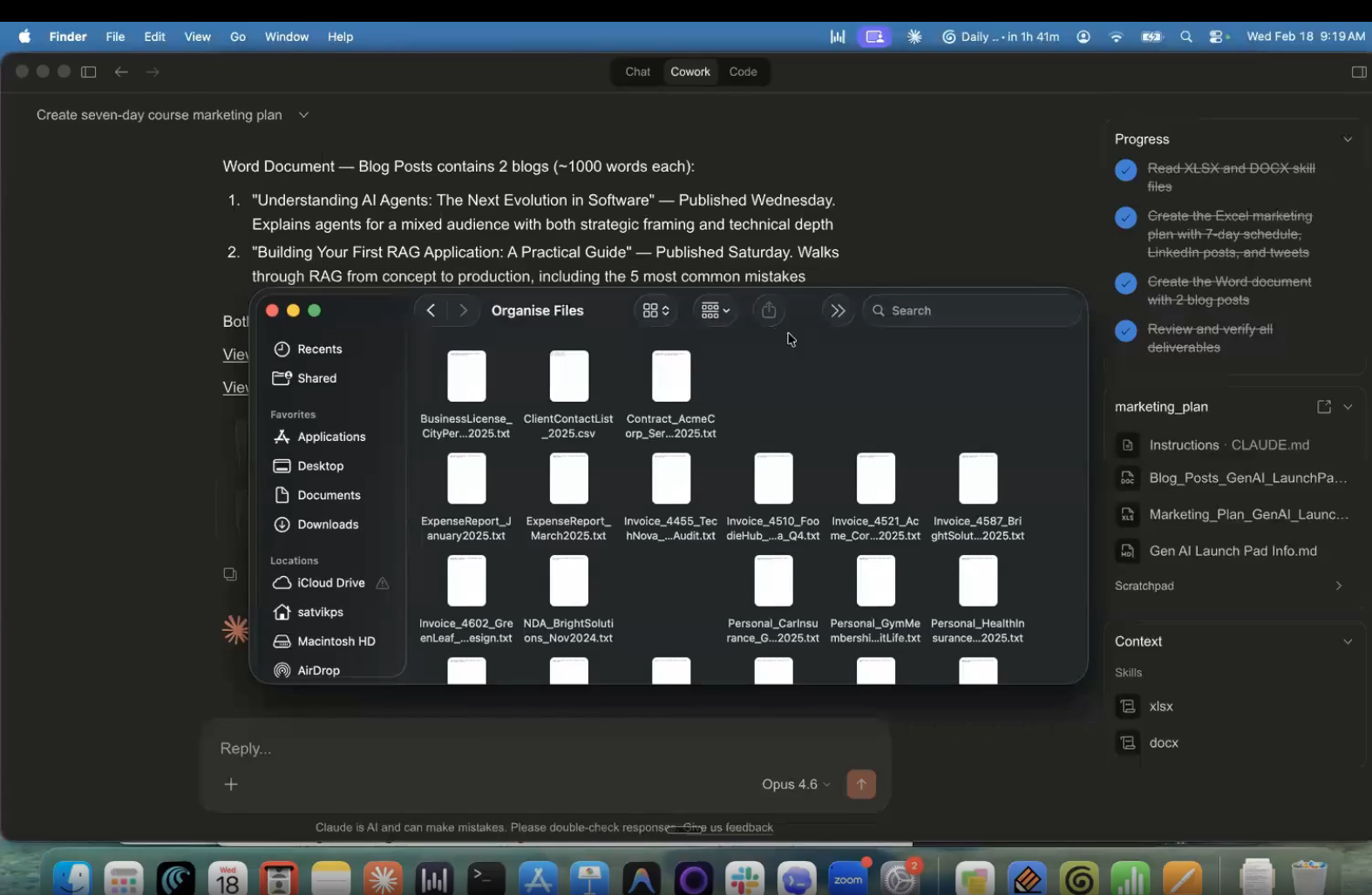
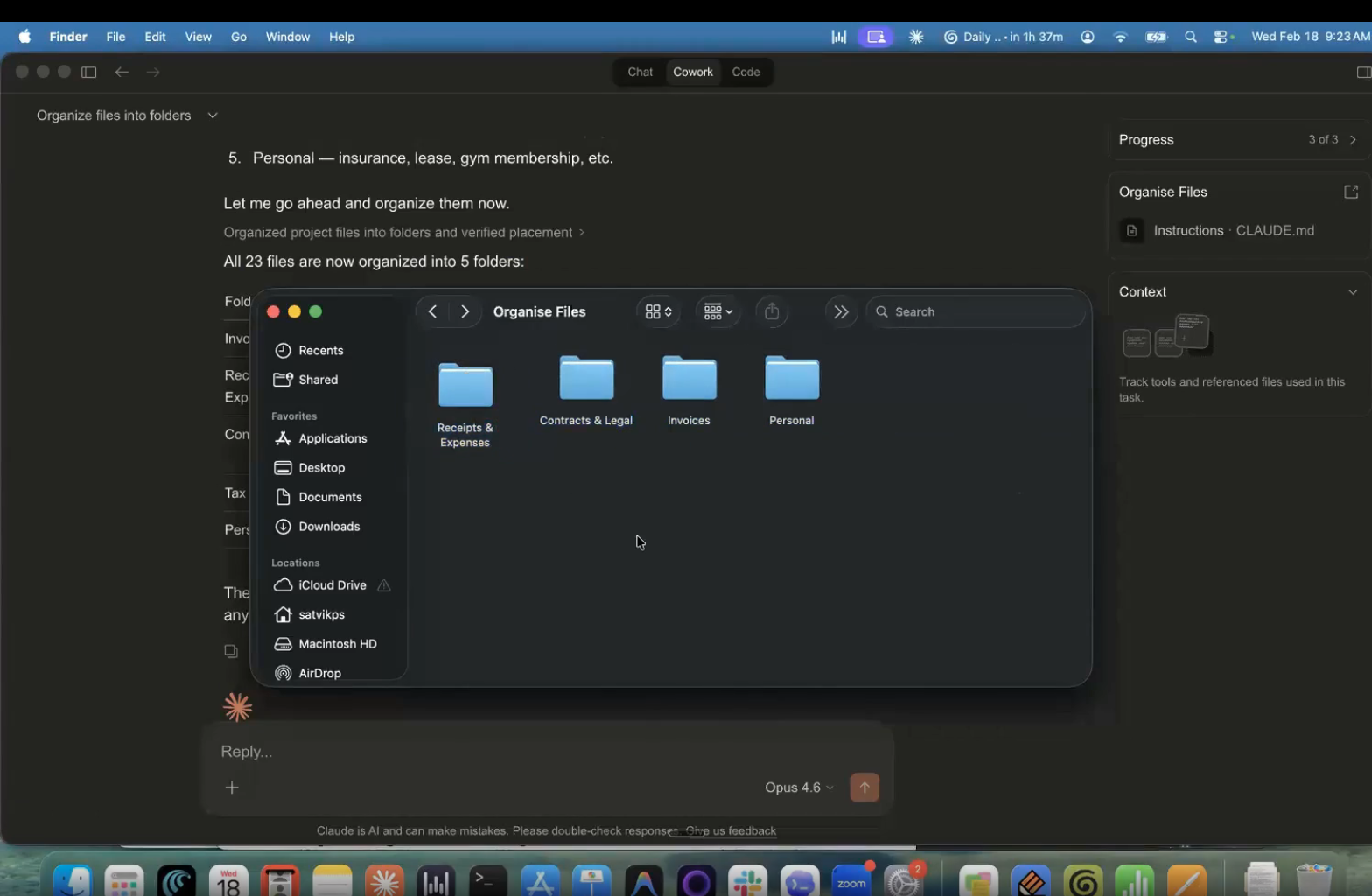
In this folder, you can see the mess I have created.
Can you please organise these files into 4 to 5 specific folders?
23 scattered files — invoices, contracts, tax docs — sorted into the right folders in under two minutes. Without being told what the categories should be.
✅ Prompting Tips
Always end complex prompts with: "Please ask clarifying questions before you begin" — this habit alone dramatically improves output
Build a context document: A markdown file with who you are, your tone, your audience. Put it in the folder. Every task will be better for it.
Think in deliverables, not instructions: Describe what you want to end up with — format, length, audience, structure. Let the agent figure out the how.
Tool 3: Claude Connectors
Claude as command centre for your entire tool stack → Claude Desktop App → Settings → Connectors → Browse Connectors
How many apps do you use in a typical workday? Email. Notion. Slack. GitHub. Google Drive. For most people: 8–15 different applications, each with its own context switch.
Claude Connectors collapses this. Connect your apps and Claude becomes the one interface that controls all of them. Claude currently supports 150+ integrations.
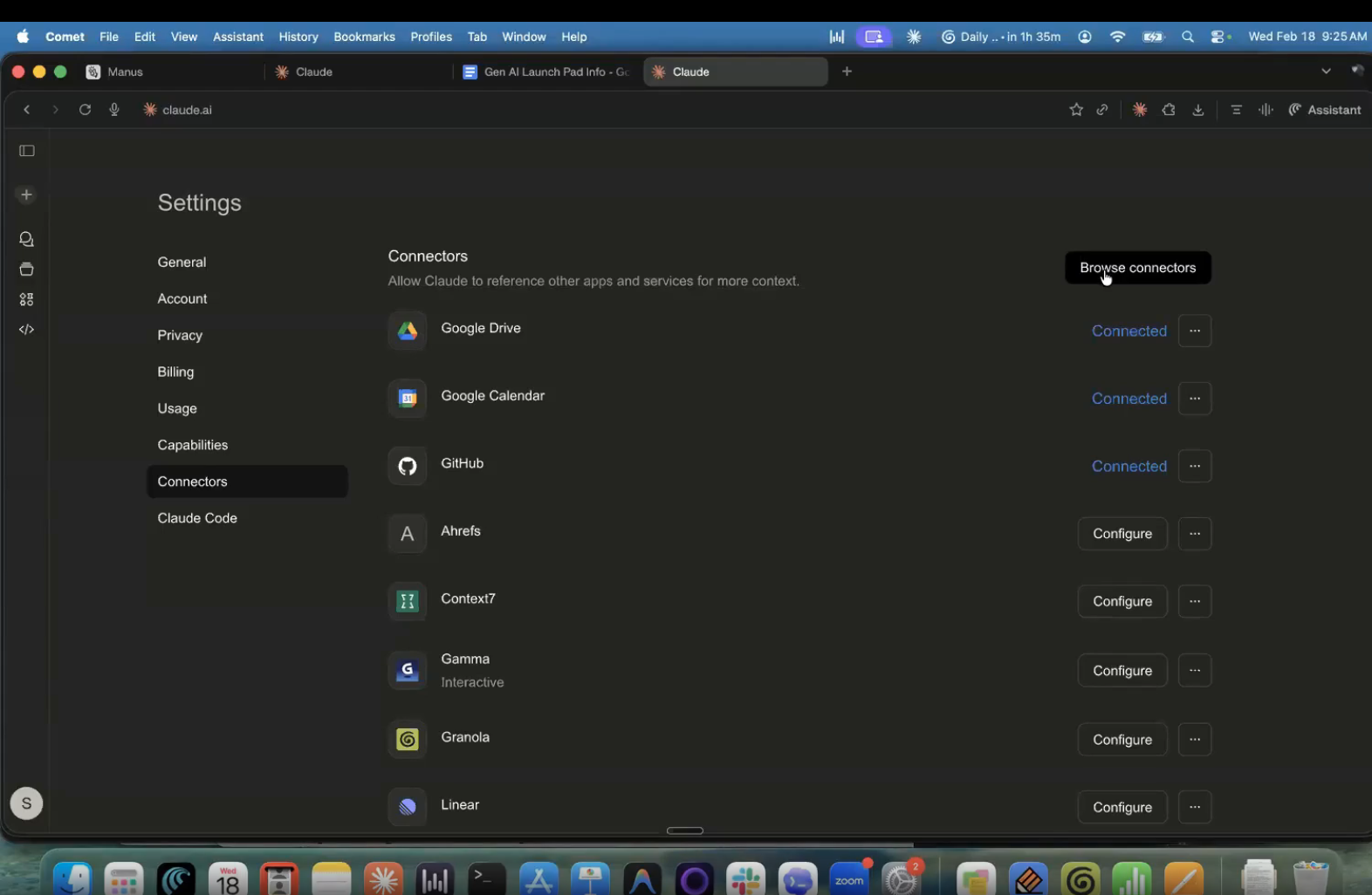
What This Looks Like in Practice
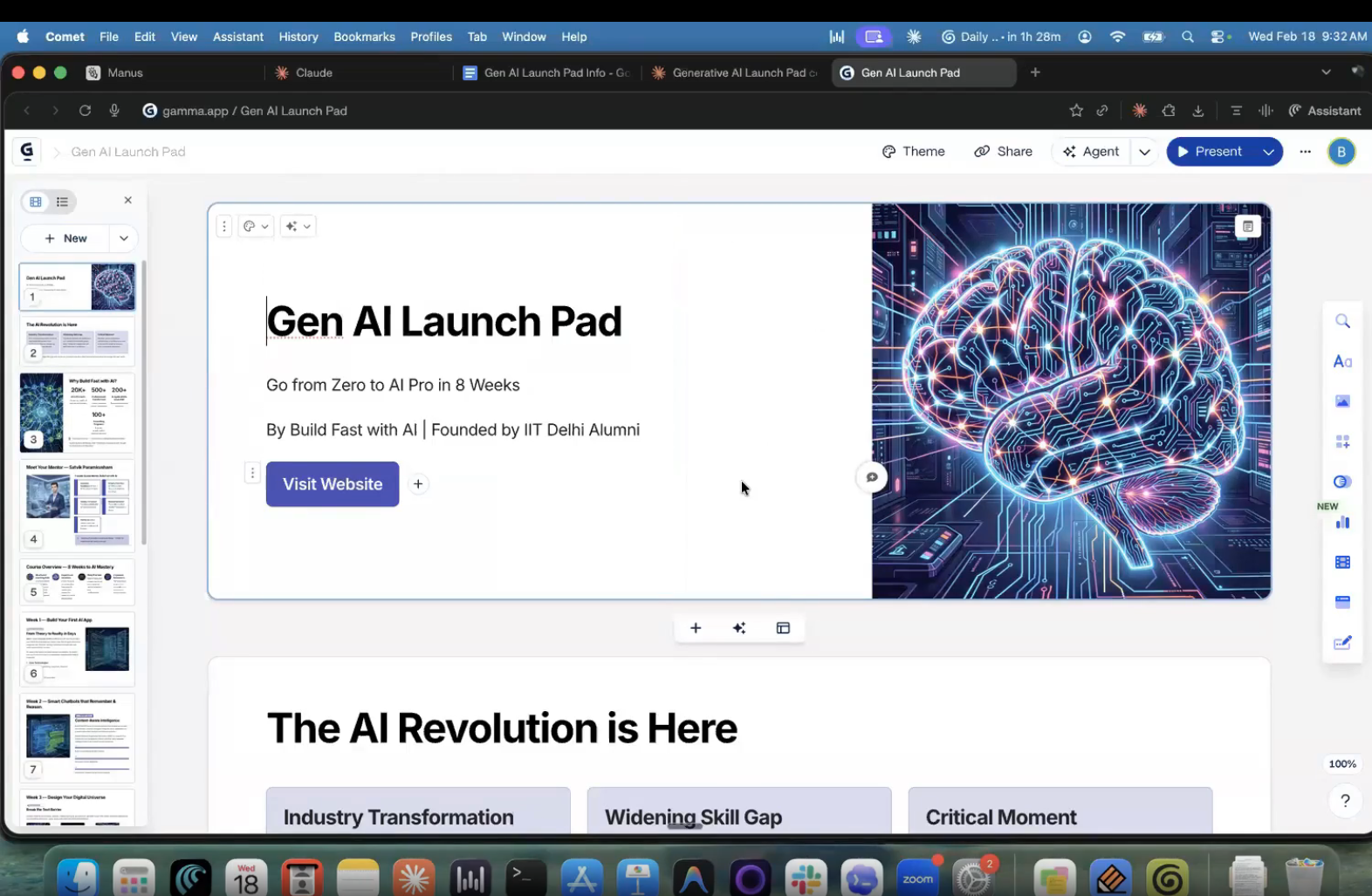
Connect Claude to Gamma (an AI-native presentation tool), then:
I am presenting to a group of enthusiastic individuals who want to learn AI. This is the course that I offer. Can you create a presentation using Gamma that I can send to people so they can view this document and understand what the course encapsulates?
Close Gamma entirely. Don't touch it.
Claude connects to Gamma remotely, reads the course content, and builds a complete presentation. A link comes back. The deck is waiting — designed, structured, ready to present.
No template selection. No drag-and-drop. No switching apps at all.
How It Works
Connectors use MCP servers (Model Context Protocol) — an open standard that lets Claude communicate with external apps. When you connect an app, Claude can read from and write to it as if it were working inside it.
🔒 Security note: The agent has to see your data to work with it. Check with your IT team before connecting work apps. Enterprise Claude accounts have additional data security features.
Tool 4: Claude Code
For building real applications — from empty folder to deployed product → claude.ai → Claude Code tab Best paired with: github.com + vercel.com
Claude Artifacts creates things in Claude's environment. Claude Cowork creates files on your laptop. Claude Code creates applications in your GitHub repository — production-grade code, ready to deploy.
This is the one for developers. And increasingly, for founders who want to stop waiting on developers.
The Full Workflow: Prompt → Live URL
Step 1: Create a GitHub repository at github.com/new
Step 2: Write a specific prompt:
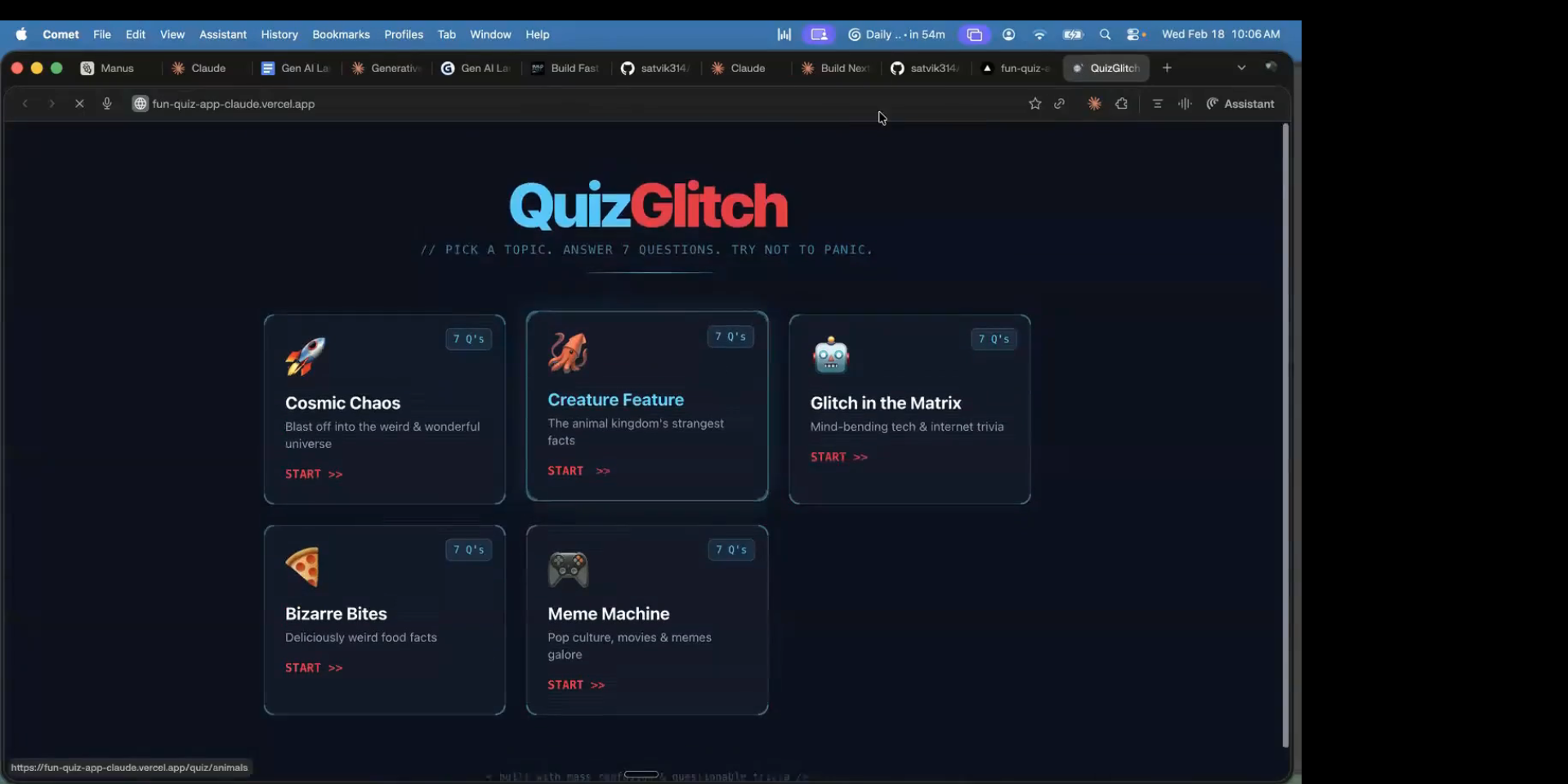
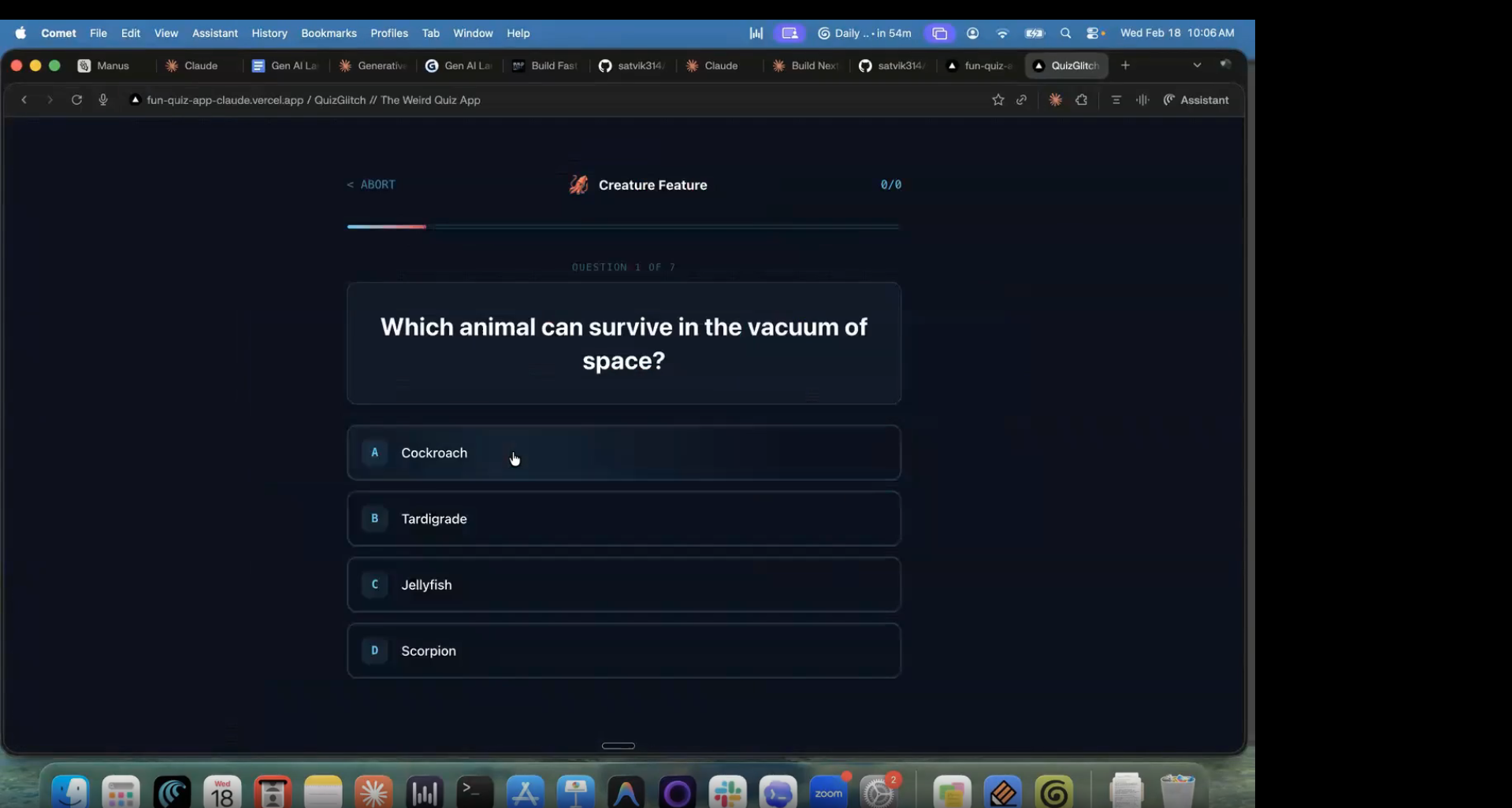
Create a Next.js quiz application with a quirky design.
Users should be able to select across 5 topics and attempt quizzes.
Each quiz should have 7 questions.
Color theme: techno blue and black. Use red for buttons.
Step 3: Link the repo to Claude Code and run. Claude builds its own to-do list and executes autonomously — ~7,500 lines of code, committed directly to GitHub.
Step 4: Go to vercel.com → import your repo → deploy. A live URL appears within minutes.
Claude Code vs. Claude Cowork
Task Use Documents, spreadsheets, file organisation Cowork Building apps, managing a codebase Claude Code.
The Prompting Principles That Make Everything Work
These apply across all four tools:
1. Specificity is the whole game
Use this template for any content task:
Create [deliverable] for [audience]. The tone should be [tone].
Key points: [points]. Output format: [format].
Please ask clarifying questions before you begin.
2. Always end complex prompts with "ask clarifying questions"
Surfaces assumptions you didn't know it was making
You course-correct before it goes in the wrong direction
Costs 2 minutes. Saves much more.
3. Build a context file A markdown document in your Cowork folder with: who you are, your audience, brand voice, and preferences. Reference it in prompts. Every task using it will be better than the one before.
4. Iterate, don't regenerate Claude remembers the conversation. If something's off, don't start over — just say what's wrong: "Make the header bigger" or "The second paragraph is too formal."
Which Tool for Which Job?
I want to...
Use Build a landing page or interactive demo fast - Artifacts
Create/organise files on my laptop - Cowork
Control apps like Notion, Gamma, GitHub from one place - Connectors
Build and deploy a real application - Claude Code
Your First 30 Minutes
0–5 min: Go to claude.ai. Paste something you've been working on and say: "Build me a landing page based on this."
5–15 min: Iterate on the landing page with plain English instructions. Change the colour scheme. Add a section. Make the headline punchier.
15–20 min: Hit "Publish Artifact." Copy the link. Send it to someone.
20–30 min: Download the Claude Desktop App. Link a folder. Give Cowork a small task — organise some files, draft a short document — and let it run while you do something else.
Want to Go Deeper?
This workshop was just Levels 1 and 2. If you want to go further — AI agents, full-stack apps, fine-tuning models, enterprise deployments — that's what the Generative AI Launchpad is built for.
8-week hands-on program
Live sessions every Saturday
15+ projects by the end
New cohort starts first week of March
👉 Check it out here — registrations closing soon.
90% of the work shown in this session was produced by AI. The human contribution was the brief, the judgment calls, and the direction. That's what working with AI actually looks like when you stop using it occasionally and start using it constantly.
— Build Fast with AI Team

